Geography: This article is applicable for ANZ Transactive Global customers banking in Hong Kong, India, the Philippines, Singapore and Vietnam.
Generate Report Screen
The following image is an example of the Generate Report screen.
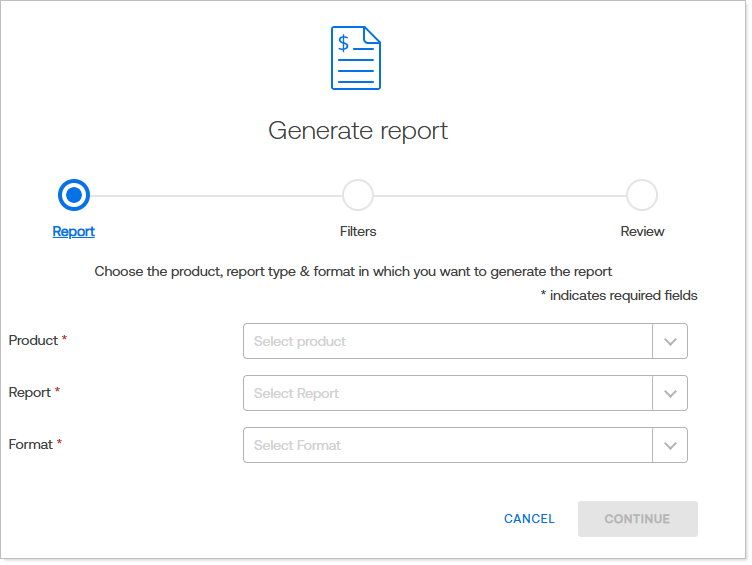
Generate Reports
| STEP |
ACTION |
| 1 |
Click Menu > Reports. |
| 2 |
Click GENERATE REPORT on the Control Bar. |
| 3 |
Select Supplemental account services from the Products drop-down list. |
| 4 |
Access to reports are based on your user entitlements.
Select the Report from the drop-down list. Choose from:
- SAS Back Value Adjustment Report
- SAS Balance Report
- SAS Consolidated Transactions Report
- SAS Context ID Issuance Report
- SAS Context ID Transaction Report
- SAS Cycle Interest Computation Report
- SAS Interest Settlement Report
- SAS Interest Summary Report
- SAS Issuance Report
- SAS Limit and Balance Check Failure
- SAS Statement Report
- SAS Sub and Control Account Hierarchy Report
- SAS Unsettled Interest Computation Report
|
| 5 |
Select the Format from the drop-down list.
Available formats vary for each report type.
|
| 6 |
Click CONTINUE. |
| 7 |
Customise the report Filters.
SAS Back Value Adjustment Report
- Select a Physical Account.
- If required, select a Virtual Account Number.
- Select the report Start Date.
- Select the report End Date.
- If required, select a Settlement Reference Number.
- Select a Virtual Account Status. Choose from:
- All
- Active
- Closed
- Inactive
SAS Balance Report
- Select a Physical Account.
- If required, select a Virtual Account Number.
- Select a Virtual Account Status. Choose from:
- All
- Active
- Closed
- Inactive
SAS Consolidated Transactions Report
- Select a Physical Account.
- If required, select a Virtual Account Number Number.
From the Include Child Accounts drop-down list, select Yes or No to include child accounts. - Select the report Start Date.
- Select the report End Date.
SAS Context ID Issuance Report
- Select a Physical Account.
- If required, select a Virtual Account Number.
- Select the report Start Date.
- Select the report End Date.
- Select a Virtual Account Status. Choose from:
- All
- Active
- Closed
- Inactive
SAS Context ID Transaction Report
- Select a Physical Account.
- If required, select a Virtual Account Number.
- If required, select a Context ID.
- Select the report Start Date.
- Select the report End Date.
- Select a Virtual Account Status. Choose from:
- All
- Active
- Closed
- Inactive
SAS Cycle Interest Computation Report
- Select a Physical Account.
- If required, select a Virtual Account Number.
- Select the report Start Date.
- Select the report End Date.
- If required, select a Settlement Reference No.
- Select a Virtual Account Status. Choose from:
- All
- Active
- Closed
- Inactive
SAS Interest Settlement Report
- Select a Physical Account.
- If required, select a Virtual Account Number.
- Select the report Start Date.
- Select the report End Date.
- If required, select a Settlement Reference No.
- Select a Virtual Account Status. Choose from:
- All
- Active
- Closed
- Inactive
SAS Interest Summary Report
- Select a Physical Account.
- If required, select a Virtual Account Number.
- From the Include Child Accounts drop-down list, select Yes or No to include child accounts.
- Select the report Start Date.
- Select the report End Date.
- Select a Virtual Account Status. Choose from:
- All
- Active
- Closed
- Inactive
SAS Issuance Report
- Select a Physical Account.
- Select the report Start Date.
- Select the report End Date.
- Select a Virtual Account Status. Choose from:
- All
- Active
- Closed
- Inactive
SAS Limit and Balance Check Failure
- Select a Physical Account.
- If required, select a Virtual Account Number.
- Select the report Start Date.
- Select the report End Date.
- Select a Virtual Account Status. Choose from:
- All
- Active
- Closed
- Inactive
SAS Statement Report
- If required, select a Physical Account.
- Select a Virtual Account Number.
- Select the report Start Date.
- Select the report End Date.
- Select a Virtual Account Status. Choose from:
- All
- Active
- Closed
- Inactive
SAS Sub and Control Account Hierarchy Report
- Select a Physical Account.
- If required, select a Virtual Account Number.
- Select the Virtual Account Status. Choose from:
- All
- Active
- Closed
- Inactive
SAS Unsettled Interest Computation Report
- If required, select a Physical Account.
- If required, select a Virtual Account.
- Select the report Start Date.
- Select the report End Date.
- If required, select a Settlement Reference No.
- Select a Virtual Account Status. Choose from:
- All
- Active
- Closed
- Inactive
|
| 8 |
Click CONTINUE. |
| 9 |
Review the report details and click SUBMIT.
RESULT: The request to generate a report has been submitted. The report will be available to download from the Documents & Reports Centre.
|