Geography: This article is applicable for ANZ Transactive Global customers banking in Indonesia.
Full details are available in Features by Geography.
Full details are available in Features by Geography.
About eTax Payments
What is an eTax Payment?
An eTax Payment is a domestic payment that allows you to transfer funds from your Indonesian Rupiah (IDR) domiciled account registered to ANZ Transactive Global, to a fixed eTax beneficiary IDR account in Indonesia. Using a Billing Code, you can confirm the pre-populated eTax Details and pay the tax amount in full.For more information, please refer to Asia & Pacific Payment Types.
Payment Method Rules for eTax Payments
- Value date will default with the current or next business date if the payment is created on a non-business date. If today's payment misses the cut-off time, your payment will remain in a processing status until it is processed on the next business date.
- Non-business day - ANZ Transactive Global will not allow you to create a payment where the Value Date is a non-business day (e.g., weekend, public holiday, bank holiday) or a currency holiday
- Cut-off time for eTax payments is 15:00
- Payment currency is IDR only
- Maximum payment value is $999,999,999,999
- Creation methods of Use Payment Template, Use Payment File or User Existing Payment are not available for this payment type
- Beneficiary Report or Advice not available for this payment type
- Beneficiary name will default with Rekening Penerimaan Negara Terpusat (Central State Revenue Account)
- Partially pay eTax Payment is not available
- eTax Payment Templates are not available as the Billing Code is unique in each instance.
Who can create a Domestic Payment?
- Eligible users with Initiator and account access can create and manage an eTax payment based on your organisation's predetermined user permissions and payment settings. These role permissions can include:
- Initiator
- Initiate/Authorise
- Full Access
Payment input screens
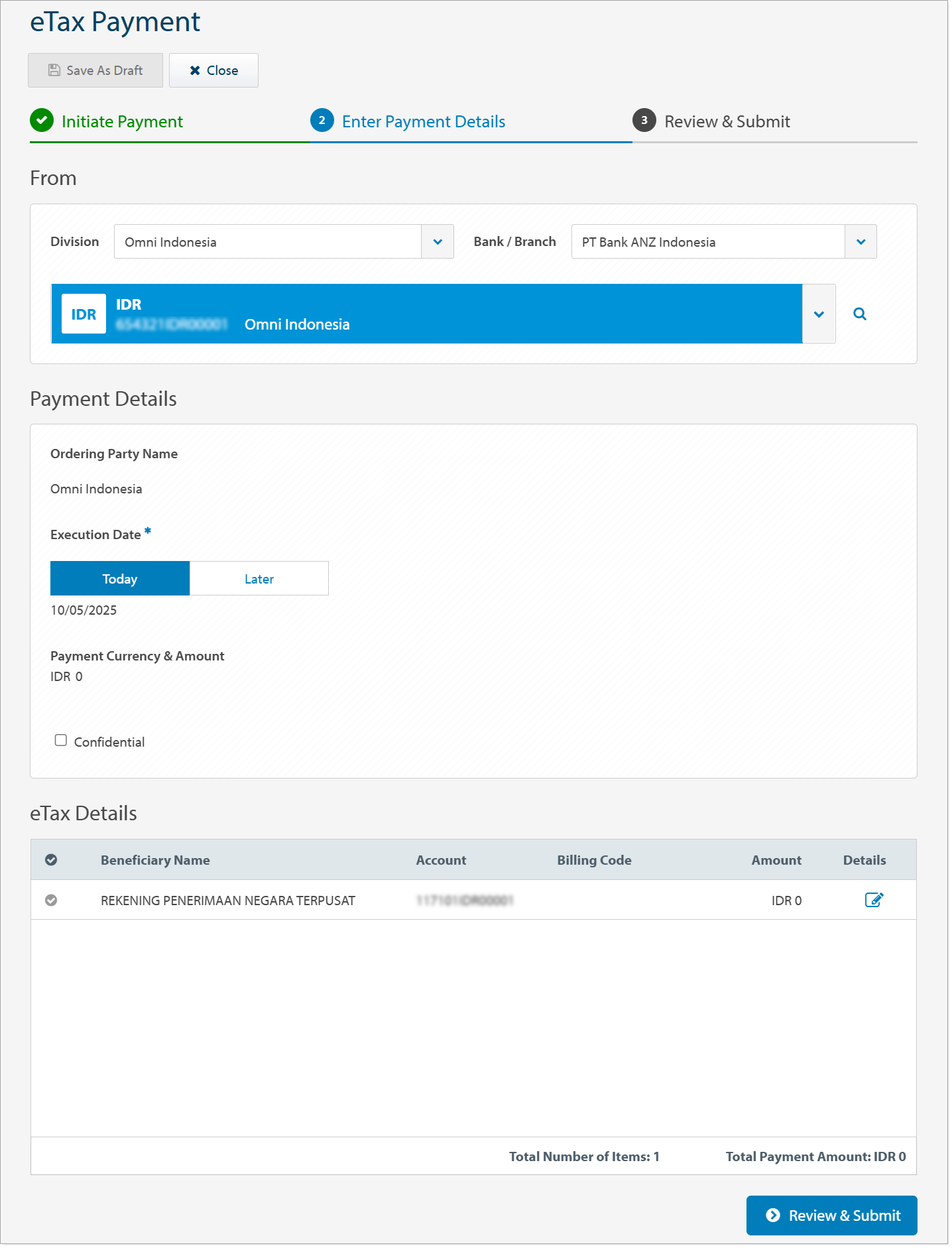
eTax Payment screen
The following image is an example of an eTax payment screen with fields including the division, debit account, execution date, and beneficiary details.
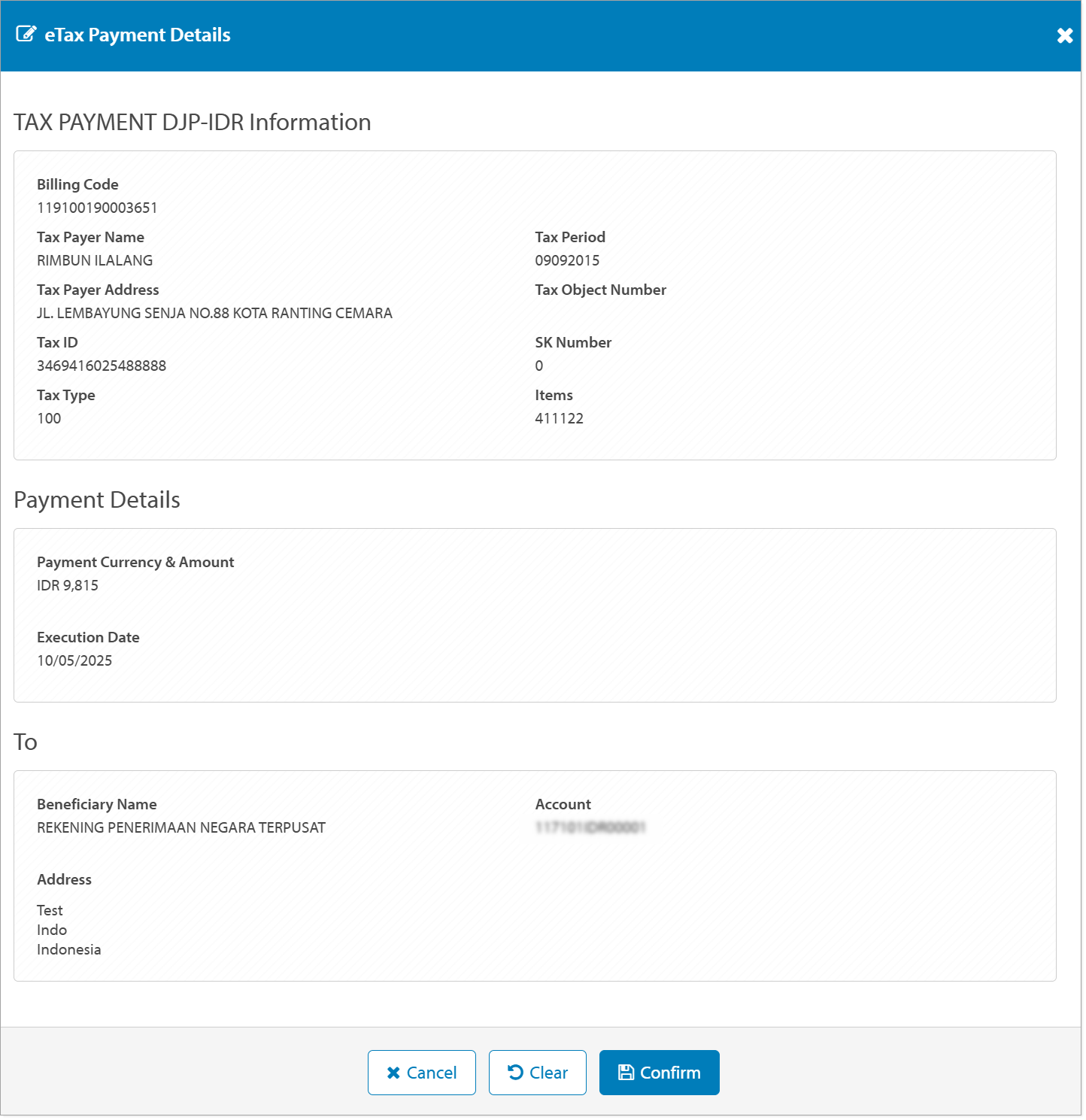
eTax Details screen
The following image is an example of an eTax Details screen with fields including the beneficiary's name, address and account details, billing code, Tax payer name, address, ID, type, period and Object Number.
Create eTax Payment video
Coming soon.
Create an eTax Payment
There are multiple ways you can create an eTax Payment from the Asia & Pacific Payments menu. Choose from the following options:
- Click Create Payment >eTax Payment (see step-by-step instructions below)
- Click Approve Payments > New > eTax Payment (see step-by-step instructions below)
- Click Current Payments > New > eTax Payment (see step-by-step instructions below)
To create an eTax Payment, follow the steps below:
| STEP | ACTION |
|---|---|
| 1 | Click Asia & Pacific Payments > Create Payment menu or Click Asia & Pacific Payments > Current Payments menu > New or Click Asia & Pacific Payments > Approve Payments menu > New. |
| 2 | Click eTax Payment. |
| 3 | If required, select the Division the payment will be made from. If you are entitled to more than one division, you can set a default division for future payments. The Bank/Branch field will prepopulate from the Division selected. |
| 4 | Select a Debit Account. |
| 5 |
Execution Date defaults with the current business date. If required, click Later to choose a future value date. |
| 6 | If required, select Confidential for confidential eTax payment and to restrict access to view, edit and approve the payment. |
| 7 | eTax Beneficiary Name will default with Rekening Penerimaan Negara Terpusat (Central State Revenue Account), and with linked account number. |
| 8 | Click eTax Payment Details icon. |
| 9 | Enter Billing Code and then click, Fetch.
RESULT: Tax Payment details related to the Billing Code will appear on screen, including Tax Payer Name, Tax Payer Address, Tax ID, Tax Type, Tax Period, Tax Object Number, SK Number, Items and Beneficiary name, address and account.
|
| 10 | Click Clear to reenter Billing Code or Confirm to confirm the tax details. |
| 11 | Click Review & Submit. |
| 12 | Click Submit. |
Next Steps
When the payment has been successfully submitted and is now in a Pending Approval status, you can choose from the following on-screen options:
- Review this Payment from the Payment Details screen
- View Approve Payments from the Approve Payments screen
- Create a New Payment
- Click OK to return to the Create Payment screen
When the payment has been successfully submitted for approval(s), the next steps can be:
- Approve Payment for processing or,
- Manage Payment for editing, repairing or deleting
Video Transcript
Coming soon.