Geography: This article is applicable for ANZ Transactive Global customers banking in Indonesia.
Full details are available in Features by Geography.
Full details are available in Features by Geography.
- These instructions are specifically for USD Cash Withdrawals. For domestic IDR Cash Withdrawals, please refer to:
- Create ACH (SKN) Cash Withdrawal Payment (Indonesia) for values under IDR 1 billion, or
- Create RTGS Cash Withdrawal Payment (Indonesia) for values equal to or over IDR 1 billion.
- For all other International Payment specifics, please refer to Create International Payment (Indonesia).
- Payment file uploads using ANZ Transactive Cash Asia file formats is available through ANZ Fileactive Portal.
About Cash Withdrawal Payments
What is a Cash Withdrawal payment?
Cash Withdrawal allows you to transfer funds from your Indonesia domiciled account registered to ANZ Transactive Global, to a predefined 'PT Bank ANZ Indonesia' beneficiary bank account in Indonesia. The nominated recipient is required to provide photo identification and if required, other supporting documentation to collect the cash from the nominated CIMB Niaga Bank branch.For more information, please refer to Asia & Pacific Payment Types.
Payment Method Rules for Cash Withdrawal Payments
- Beneficiary name should be selected as PT Bank ANZ Indonesia.
- Remittance Information: Mandatory details are required in a specific format. Refer step instructions.
- Supporting documents to include a copy of the Beneficiary photo ID
- Non-Cash Withdrawal beneficiaries can be added to this payment.
- Transaction narratives for Cash Withdrawals will appear in payment reports with an RTGS prefix.
- Value date will default with the current or next business date if the payment is created on a non-business date. If today's payment misses the cut-off time, your payment will remain in a processing status until it is processed on the next business date.
- Non-business day - ANZ Transactive Global will not allow you to create a payment where the Value Date is a non-business day (e.g., weekend, public holiday, bank holiday) or a currency holiday.
- Cut-off times vary and are dependent on the currencies used.
- Payment currency includes all ANZ-supported and tradeable currencies.
- Maximum payment value is 999,999,999,999
Who can create a Cash Withdrawal Payment?
- Eligible users with Initiator and account access can create and manage an international payment based on your organisation's predetermined user permissions and payment settings. These role permissions can include:
- Initiator
- Initiate/Authorise
- Full Access
Payment input screens
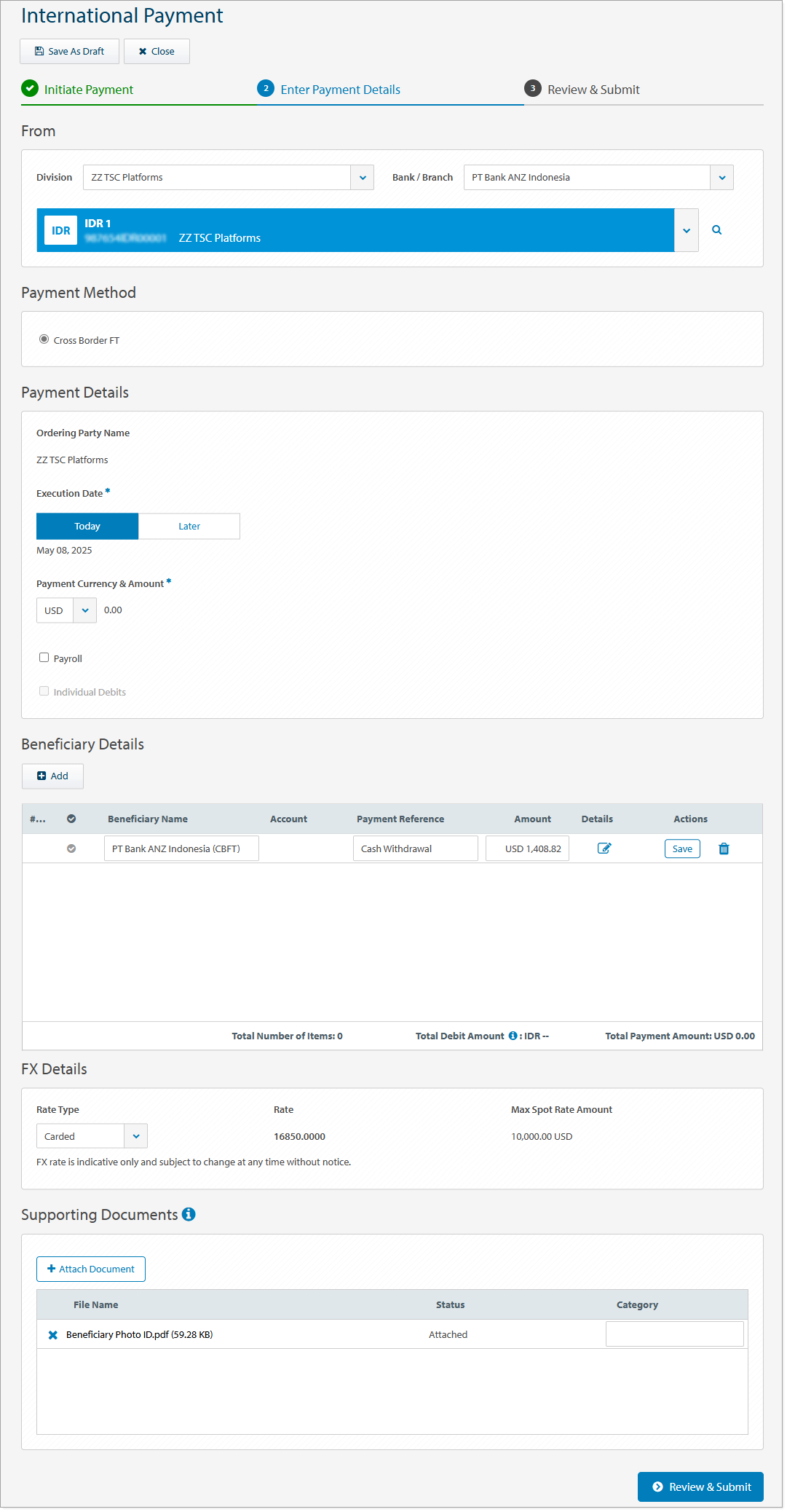
International Payment screen
The following image is an example of an international payment screen with fields including the division, debit account, execution date, payment reference, beneficiary details and supporting documents.
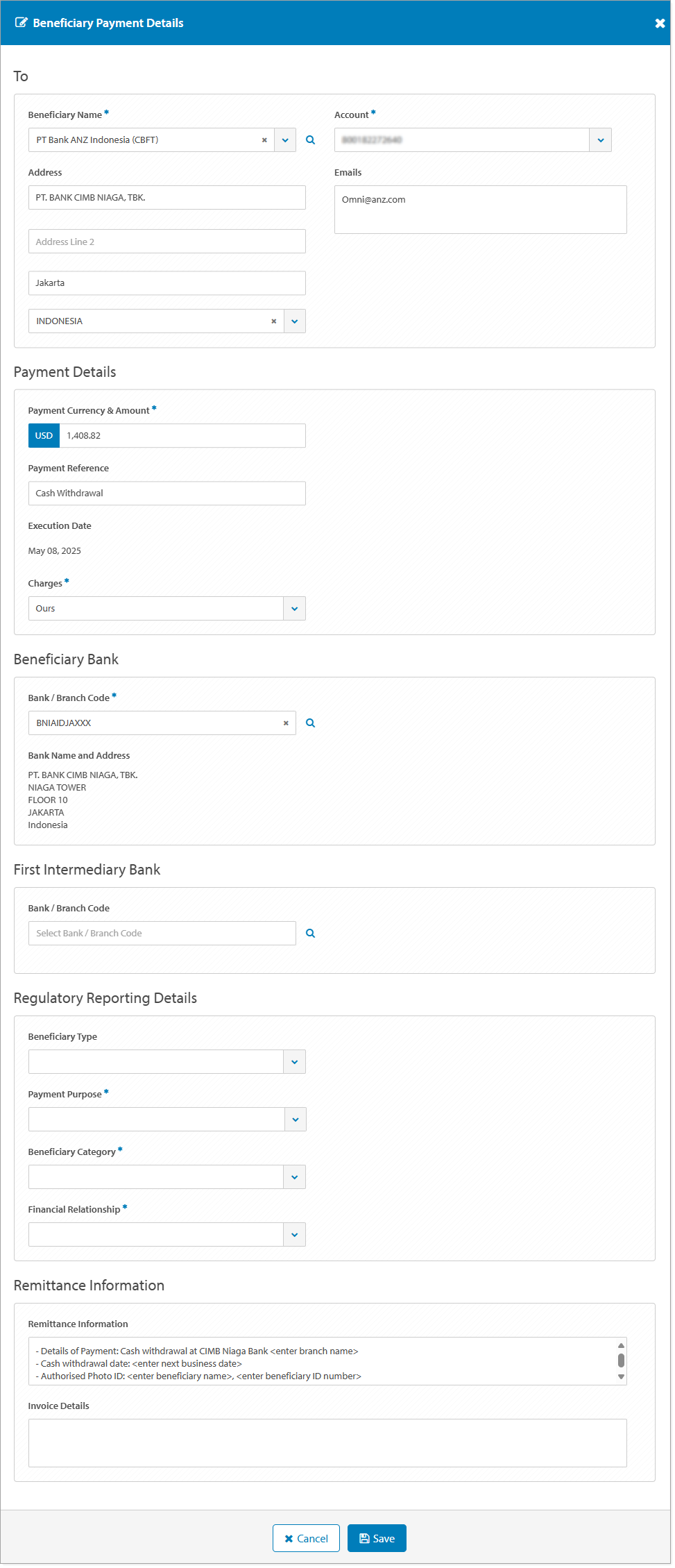
Beneficiary Payment Details screen
The following image is an example of a Beneficiary Payment Details screen with fields including the beneficiary's name, address and account details, beneficiary bank details, payment reference, remittance information and invoice details.
Create Cash Withdrawal Payment video
Coming soon.
Create a Cash Withdrawal Payment
There are multiple ways you can create a cash withdrawal payment using the international payment method type from the Asia & Pacific Payments menu. Choose from the following options:
- Click Create Payment > International Payment (see step-by-step instructions below)
- Click Create Payment > Use Payment Template
- Click Create Payment > Use Payment File using Asia & Pacific File Format Guides
- Click Create Payment > Use Existing Payment
- Click Approve Payments > New > International Payment (see step-by-step instructions below)
- Click Current Payments > New > International Payment (see step-by-step instructions below)
To create a Cash Withdrawal payment and manually enter the payment instructions, follow the steps below:
| STEP | ACTION | ||||||||||||||||||||||||||||||||||||||||||||||||||||||||||||||||||||||||||||||||||||||||||||||||||||||||||||||||||||||||||||||||||||||||||||||||||||||||||||||||||||||||||||||||||||||||||||||||||||||||||||||||||||||||||||||||||||||||||||||||||||||||||||||||||||||||||||||||||||||||||||||||||||||||||||||||||||||||||||||||||||||||||||||||||||||||||||||||||||||||||||||||||||||||||||||||||||||||||||||||||||||||||||||||||||||||||||||||||||||
|---|---|---|---|---|---|---|---|---|---|---|---|---|---|---|---|---|---|---|---|---|---|---|---|---|---|---|---|---|---|---|---|---|---|---|---|---|---|---|---|---|---|---|---|---|---|---|---|---|---|---|---|---|---|---|---|---|---|---|---|---|---|---|---|---|---|---|---|---|---|---|---|---|---|---|---|---|---|---|---|---|---|---|---|---|---|---|---|---|---|---|---|---|---|---|---|---|---|---|---|---|---|---|---|---|---|---|---|---|---|---|---|---|---|---|---|---|---|---|---|---|---|---|---|---|---|---|---|---|---|---|---|---|---|---|---|---|---|---|---|---|---|---|---|---|---|---|---|---|---|---|---|---|---|---|---|---|---|---|---|---|---|---|---|---|---|---|---|---|---|---|---|---|---|---|---|---|---|---|---|---|---|---|---|---|---|---|---|---|---|---|---|---|---|---|---|---|---|---|---|---|---|---|---|---|---|---|---|---|---|---|---|---|---|---|---|---|---|---|---|---|---|---|---|---|---|---|---|---|---|---|---|---|---|---|---|---|---|---|---|---|---|---|---|---|---|---|---|---|---|---|---|---|---|---|---|---|---|---|---|---|---|---|---|---|---|---|---|---|---|---|---|---|---|---|---|---|---|---|---|---|---|---|---|---|---|---|---|---|---|---|---|---|---|---|---|---|---|---|---|---|---|---|---|---|---|---|---|---|---|---|---|---|---|---|---|---|---|---|---|---|---|---|---|---|---|---|---|---|---|---|---|---|---|---|---|---|---|---|---|---|---|---|---|---|---|---|---|---|---|---|---|---|---|---|---|---|---|---|---|---|---|---|---|---|---|---|---|---|---|---|---|---|---|---|---|---|---|---|---|---|---|---|---|---|---|---|---|---|---|---|---|---|---|---|---|---|---|---|---|---|---|---|---|---|---|---|---|---|---|---|---|---|---|---|---|---|---|---|---|---|---|---|---|---|---|---|---|---|---|---|---|---|---|---|---|---|---|---|---|
| 1 | Click Asia & Pacific Payments > Create Payment menu or Click Asia & Pacific Payments > Current Payments menu > New or Click Asia & Pacific Payments > Approve Payments menu > New. |
||||||||||||||||||||||||||||||||||||||||||||||||||||||||||||||||||||||||||||||||||||||||||||||||||||||||||||||||||||||||||||||||||||||||||||||||||||||||||||||||||||||||||||||||||||||||||||||||||||||||||||||||||||||||||||||||||||||||||||||||||||||||||||||||||||||||||||||||||||||||||||||||||||||||||||||||||||||||||||||||||||||||||||||||||||||||||||||||||||||||||||||||||||||||||||||||||||||||||||||||||||||||||||||||||||||||||||||||||||||
| 2 | Click International Payment. | ||||||||||||||||||||||||||||||||||||||||||||||||||||||||||||||||||||||||||||||||||||||||||||||||||||||||||||||||||||||||||||||||||||||||||||||||||||||||||||||||||||||||||||||||||||||||||||||||||||||||||||||||||||||||||||||||||||||||||||||||||||||||||||||||||||||||||||||||||||||||||||||||||||||||||||||||||||||||||||||||||||||||||||||||||||||||||||||||||||||||||||||||||||||||||||||||||||||||||||||||||||||||||||||||||||||||||||||||||||||
| 3 | If required, select the Division the international payment will be made from. If you are entitled to more than one division, you can set a default division for future payments. The Bank/Branch field will prepopulate from the Division selected. |
||||||||||||||||||||||||||||||||||||||||||||||||||||||||||||||||||||||||||||||||||||||||||||||||||||||||||||||||||||||||||||||||||||||||||||||||||||||||||||||||||||||||||||||||||||||||||||||||||||||||||||||||||||||||||||||||||||||||||||||||||||||||||||||||||||||||||||||||||||||||||||||||||||||||||||||||||||||||||||||||||||||||||||||||||||||||||||||||||||||||||||||||||||||||||||||||||||||||||||||||||||||||||||||||||||||||||||||||||||||
| 4 | Select the Debit Account. The Ordering Party Name and Alternative Ordering Party Name will prepopulate based on the debit account selected. |
||||||||||||||||||||||||||||||||||||||||||||||||||||||||||||||||||||||||||||||||||||||||||||||||||||||||||||||||||||||||||||||||||||||||||||||||||||||||||||||||||||||||||||||||||||||||||||||||||||||||||||||||||||||||||||||||||||||||||||||||||||||||||||||||||||||||||||||||||||||||||||||||||||||||||||||||||||||||||||||||||||||||||||||||||||||||||||||||||||||||||||||||||||||||||||||||||||||||||||||||||||||||||||||||||||||||||||||||||||||
| 5 |
Execution Date will prepopulate with the current business date. If required, click Later to choose a future value date up to 90 days. |
||||||||||||||||||||||||||||||||||||||||||||||||||||||||||||||||||||||||||||||||||||||||||||||||||||||||||||||||||||||||||||||||||||||||||||||||||||||||||||||||||||||||||||||||||||||||||||||||||||||||||||||||||||||||||||||||||||||||||||||||||||||||||||||||||||||||||||||||||||||||||||||||||||||||||||||||||||||||||||||||||||||||||||||||||||||||||||||||||||||||||||||||||||||||||||||||||||||||||||||||||||||||||||||||||||||||||||||||||||||
| 6 | If required, select the Payment Currency as USD, if different from the debit account currency. Refer to Processing & cut-off times for list of available payment currencies. The net Payment Amount will be populated when the Beneficiary amount(s) are entered. |
||||||||||||||||||||||||||||||||||||||||||||||||||||||||||||||||||||||||||||||||||||||||||||||||||||||||||||||||||||||||||||||||||||||||||||||||||||||||||||||||||||||||||||||||||||||||||||||||||||||||||||||||||||||||||||||||||||||||||||||||||||||||||||||||||||||||||||||||||||||||||||||||||||||||||||||||||||||||||||||||||||||||||||||||||||||||||||||||||||||||||||||||||||||||||||||||||||||||||||||||||||||||||||||||||||||||||||||||||||||
| 7 | If required, select the Individual Debits indicator to generate a separate debit entry on your account for each individual beneficiary payment instruction. | ||||||||||||||||||||||||||||||||||||||||||||||||||||||||||||||||||||||||||||||||||||||||||||||||||||||||||||||||||||||||||||||||||||||||||||||||||||||||||||||||||||||||||||||||||||||||||||||||||||||||||||||||||||||||||||||||||||||||||||||||||||||||||||||||||||||||||||||||||||||||||||||||||||||||||||||||||||||||||||||||||||||||||||||||||||||||||||||||||||||||||||||||||||||||||||||||||||||||||||||||||||||||||||||||||||||||||||||||||||||
| 8 |
To reduce the risk of fraud, ANZ recommends you always confirm beneficiary details when processing a payment.
Click Add to add one or more beneficiaries:Search and select the predefined PT Bank ANZ Indonesia beneficiary from the Beneficiary Name field, then proceed to next steps. If required, click Add again to add additional beneficiaries. |
||||||||||||||||||||||||||||||||||||||||||||||||||||||||||||||||||||||||||||||||||||||||||||||||||||||||||||||||||||||||||||||||||||||||||||||||||||||||||||||||||||||||||||||||||||||||||||||||||||||||||||||||||||||||||||||||||||||||||||||||||||||||||||||||||||||||||||||||||||||||||||||||||||||||||||||||||||||||||||||||||||||||||||||||||||||||||||||||||||||||||||||||||||||||||||||||||||||||||||||||||||||||||||||||||||||||||||||||||||||
| 9 | Enter 'Cash Withdrawal' in the Payment Reference field. | ||||||||||||||||||||||||||||||||||||||||||||||||||||||||||||||||||||||||||||||||||||||||||||||||||||||||||||||||||||||||||||||||||||||||||||||||||||||||||||||||||||||||||||||||||||||||||||||||||||||||||||||||||||||||||||||||||||||||||||||||||||||||||||||||||||||||||||||||||||||||||||||||||||||||||||||||||||||||||||||||||||||||||||||||||||||||||||||||||||||||||||||||||||||||||||||||||||||||||||||||||||||||||||||||||||||||||||||||||||||
| 10 | Enter the Beneficiary payment Amount. | ||||||||||||||||||||||||||||||||||||||||||||||||||||||||||||||||||||||||||||||||||||||||||||||||||||||||||||||||||||||||||||||||||||||||||||||||||||||||||||||||||||||||||||||||||||||||||||||||||||||||||||||||||||||||||||||||||||||||||||||||||||||||||||||||||||||||||||||||||||||||||||||||||||||||||||||||||||||||||||||||||||||||||||||||||||||||||||||||||||||||||||||||||||||||||||||||||||||||||||||||||||||||||||||||||||||||||||||||||||||
| 11 | Click Details icon to view and update additional beneficiary information. Fields available:
Add or update Beneficiary Payment Details
|
||||||||||||||||||||||||||||||||||||||||||||||||||||||||||||||||||||||||||||||||||||||||||||||||||||||||||||||||||||||||||||||||||||||||||||||||||||||||||||||||||||||||||||||||||||||||||||||||||||||||||||||||||||||||||||||||||||||||||||||||||||||||||||||||||||||||||||||||||||||||||||||||||||||||||||||||||||||||||||||||||||||||||||||||||||||||||||||||||||||||||||||||||||||||||||||||||||||||||||||||||||||||||||||||||||||||||||||||||||||
| 12 | If required, choose Rate Type:
|
||||||||||||||||||||||||||||||||||||||||||||||||||||||||||||||||||||||||||||||||||||||||||||||||||||||||||||||||||||||||||||||||||||||||||||||||||||||||||||||||||||||||||||||||||||||||||||||||||||||||||||||||||||||||||||||||||||||||||||||||||||||||||||||||||||||||||||||||||||||||||||||||||||||||||||||||||||||||||||||||||||||||||||||||||||||||||||||||||||||||||||||||||||||||||||||||||||||||||||||||||||||||||||||||||||||||||||||||||||||
| 13 | If required, click Attach Document to add a copy of the Beneficiary's photo ID.
|
||||||||||||||||||||||||||||||||||||||||||||||||||||||||||||||||||||||||||||||||||||||||||||||||||||||||||||||||||||||||||||||||||||||||||||||||||||||||||||||||||||||||||||||||||||||||||||||||||||||||||||||||||||||||||||||||||||||||||||||||||||||||||||||||||||||||||||||||||||||||||||||||||||||||||||||||||||||||||||||||||||||||||||||||||||||||||||||||||||||||||||||||||||||||||||||||||||||||||||||||||||||||||||||||||||||||||||||||||||||
| 14 | Click Review & Submit | ||||||||||||||||||||||||||||||||||||||||||||||||||||||||||||||||||||||||||||||||||||||||||||||||||||||||||||||||||||||||||||||||||||||||||||||||||||||||||||||||||||||||||||||||||||||||||||||||||||||||||||||||||||||||||||||||||||||||||||||||||||||||||||||||||||||||||||||||||||||||||||||||||||||||||||||||||||||||||||||||||||||||||||||||||||||||||||||||||||||||||||||||||||||||||||||||||||||||||||||||||||||||||||||||||||||||||||||||||||||
| 15 | Click Submit |
Errors and Alerts
Error and alert messages such as 'fields validations' display information about the impacted field(s) and highlights the field(s) in red. Error messages are specific to the payment method types, fields available and particulars validations. You can update the information within the impacted field(s) and continue processing the payment.
Mandatory field validations:
Foreign exchange field validations:
Upload supporting document validations:
Next Steps
When the payment has been successfully submitted and is now in a Pending Approval status, you can choose from the following on-screen options:
- Review this Payment from the Payment Details screen
- View Approve Payments from the Approve Payments screen
- Create a New Payment
- Click OK to return to the Create Payment screen
When the payment has been successfully submitted for approval(s), the next steps can be:
- Approve Payment for processing or,
- Manage Payment for copying, editing, repairing or deleting
Video Transcript
Coming soon.