Full details are available in Features by Geography.
| STEP | ACTION |
| 1 |
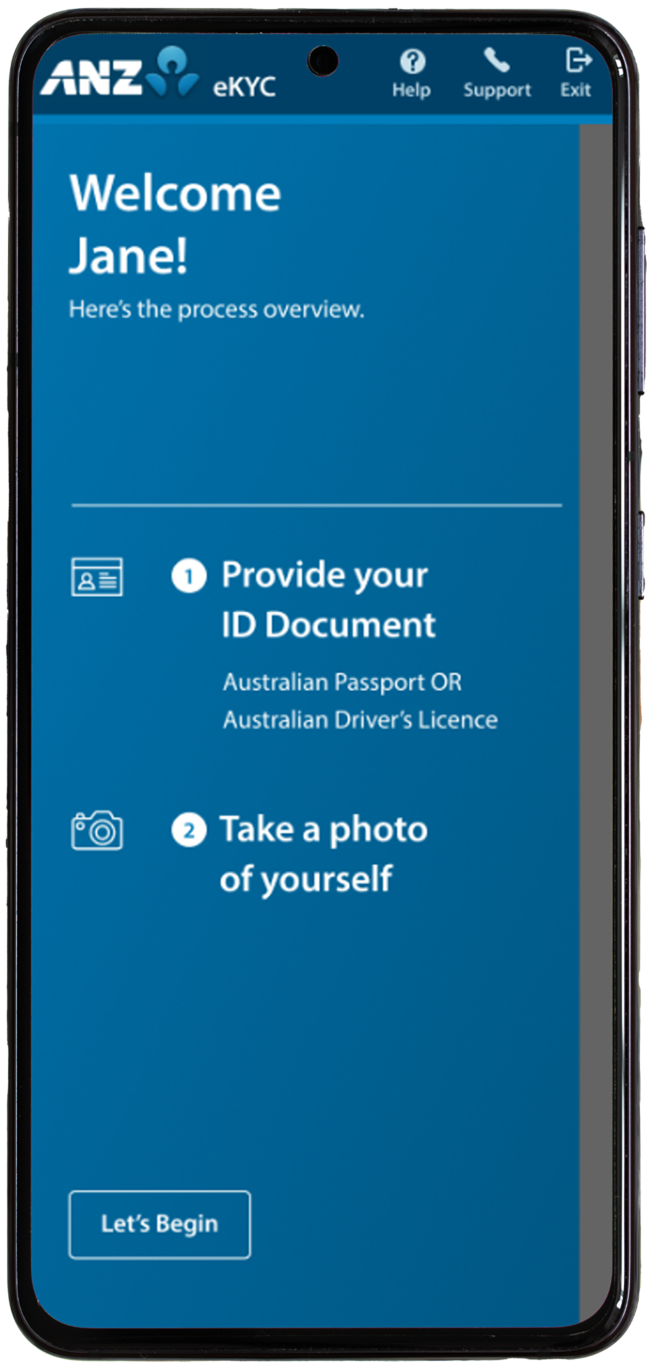
Go to the eKYC Identification Verification page and click Verify Now.
|
| 2 |
Enter your email address and unique Reference Number and tap Start. Your email address will be the same one you registered with ANZ, and the Reference Number will be in the Identity Verification email from ANZ.
|
| 3 |
Review and accept ANZ’s Terms & Conditions and tap Agree.
If you tap Disagree, you will not be able to proceed with eKYC and the process will end. You will need to contact ANZ to progress with your identity verification. |
| 4 |
Tap Let’s get started.
|
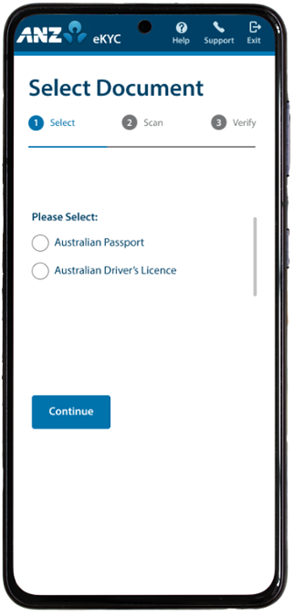
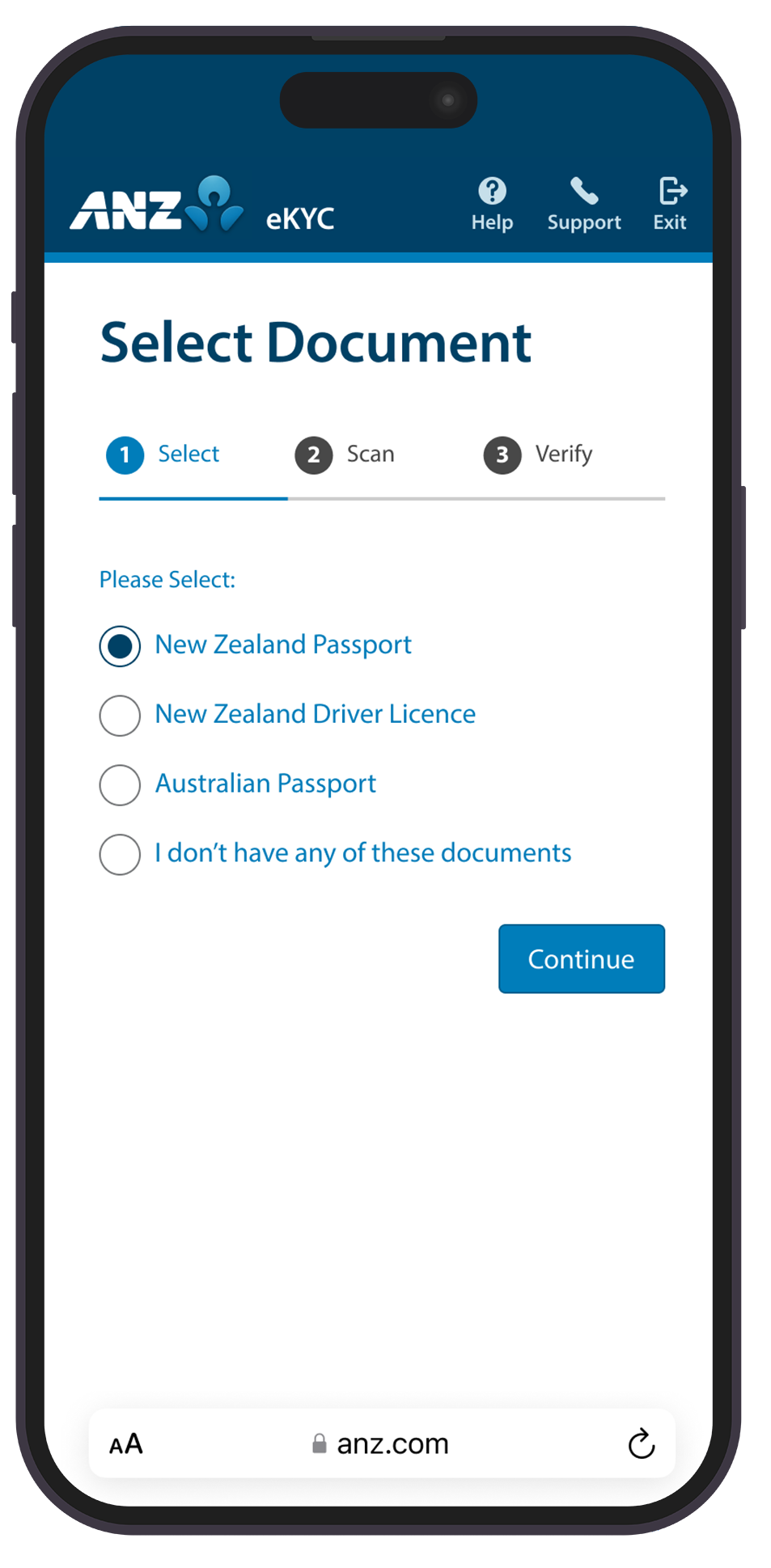
| 5 | Select a Document option:
Tap Continue.
|
| 6 |
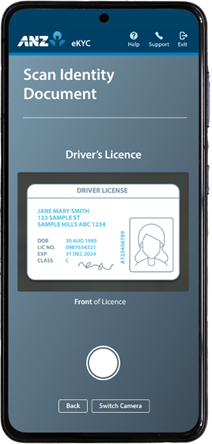
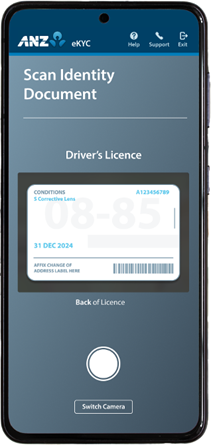
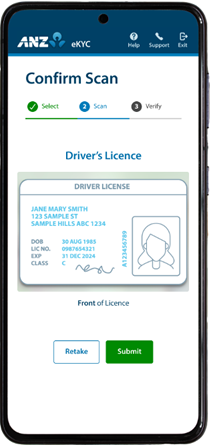
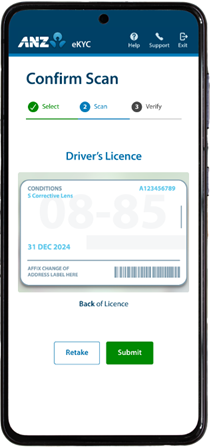
Scan your hard copy Identity Document and tap the shutter button, then tap Submit. If there is an issue with the scan, tap Retake and try again. For best results, ANZ recommends laying your document on a clean and flat surface.
|
| 7 |
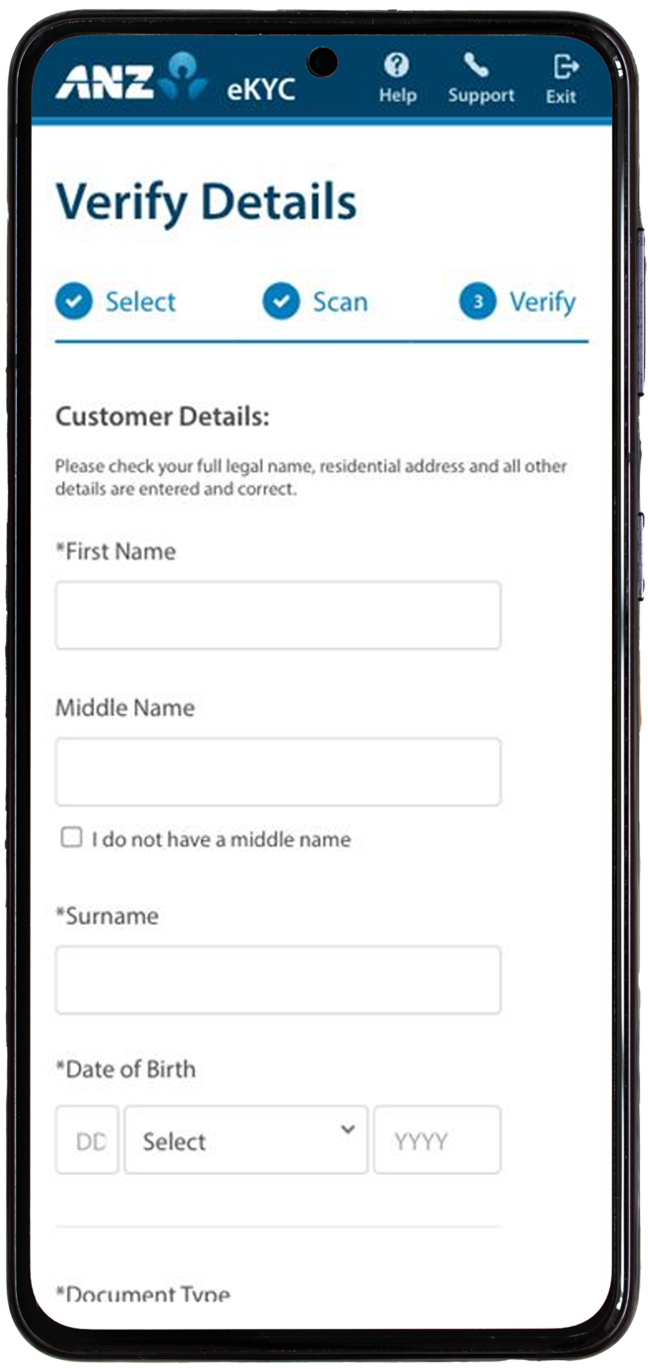
Verify information and ensure any inaccurate details are correctly edited, then tick the checkbox and tap Confirm.
|
| 8 |
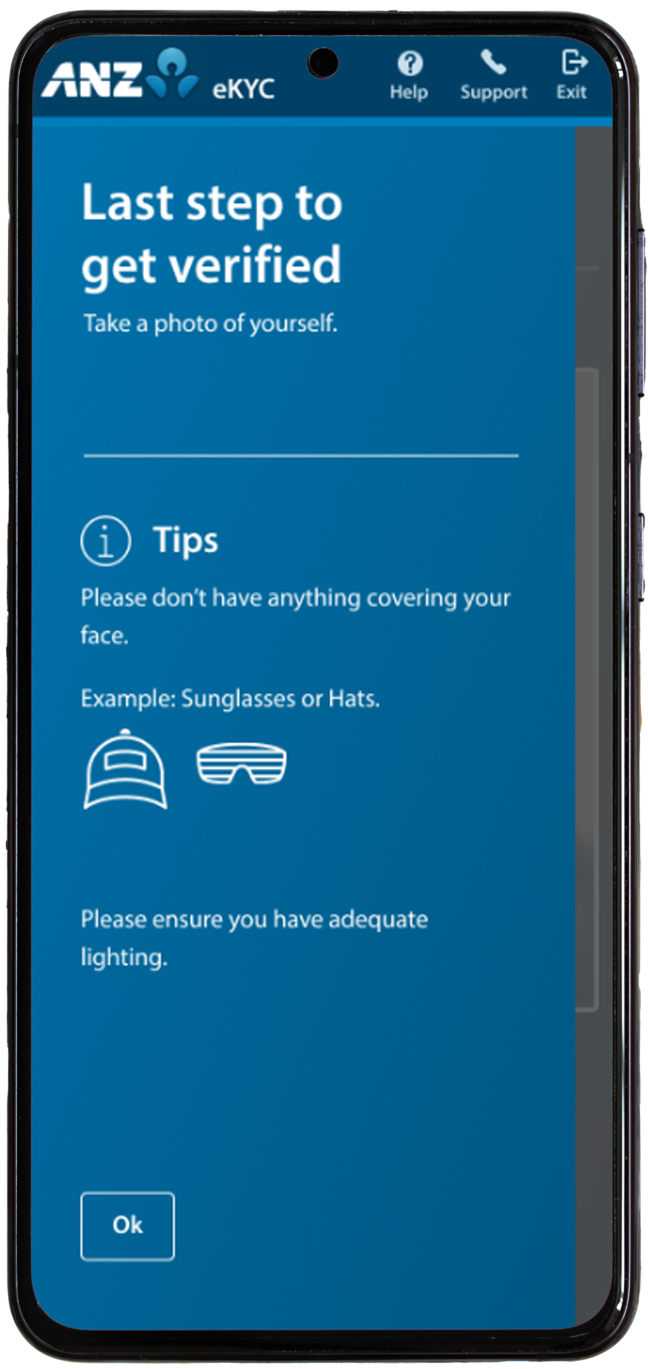
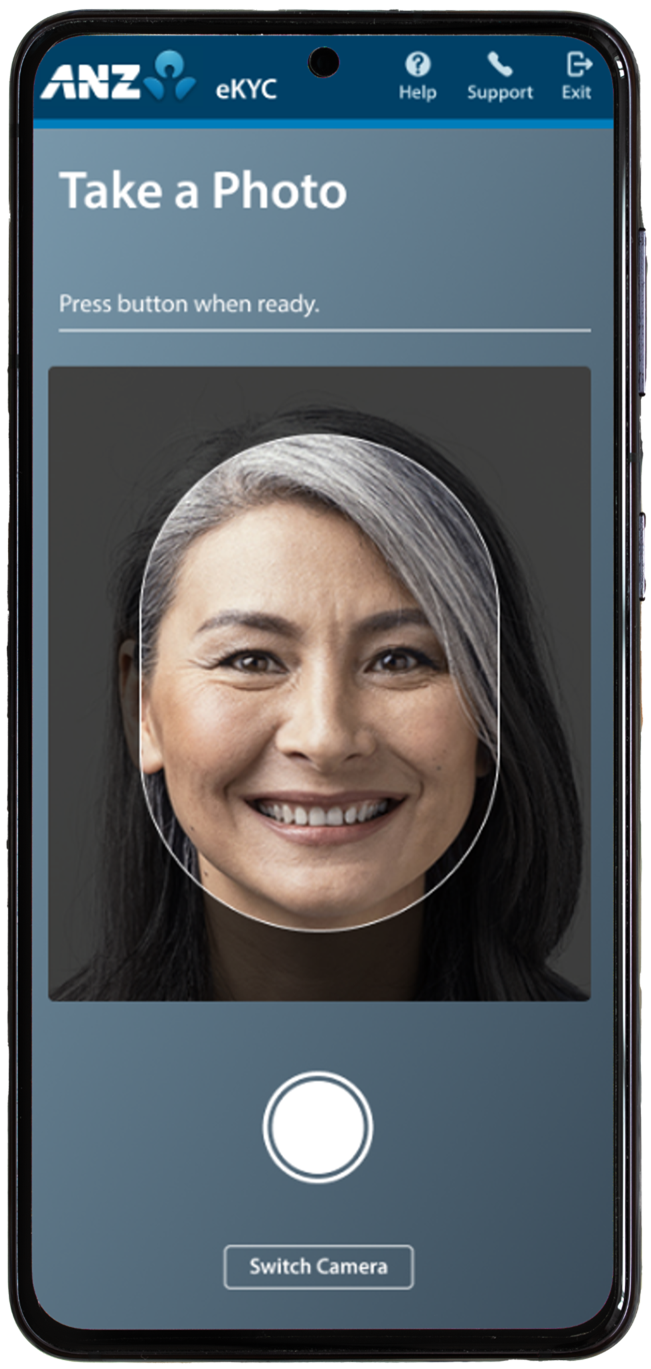
Tap Ok to take a photo of yourself.
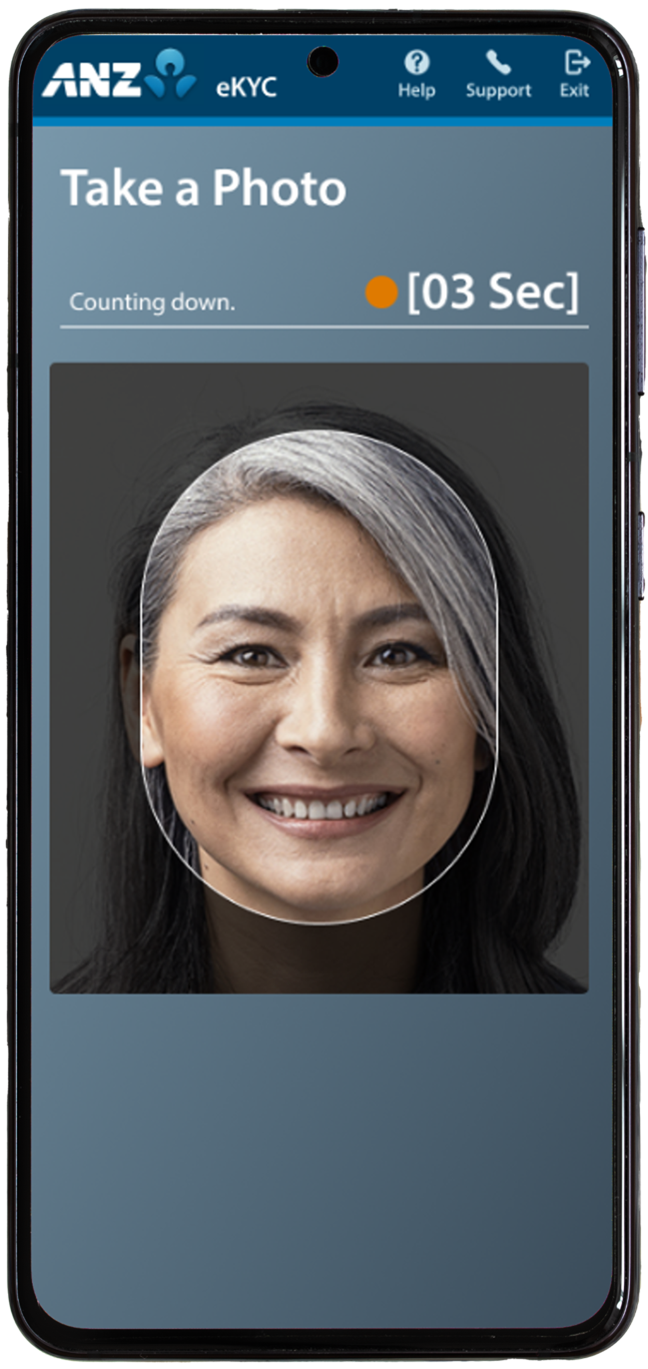
Tap the shutter button when ready.
|
| 9 |
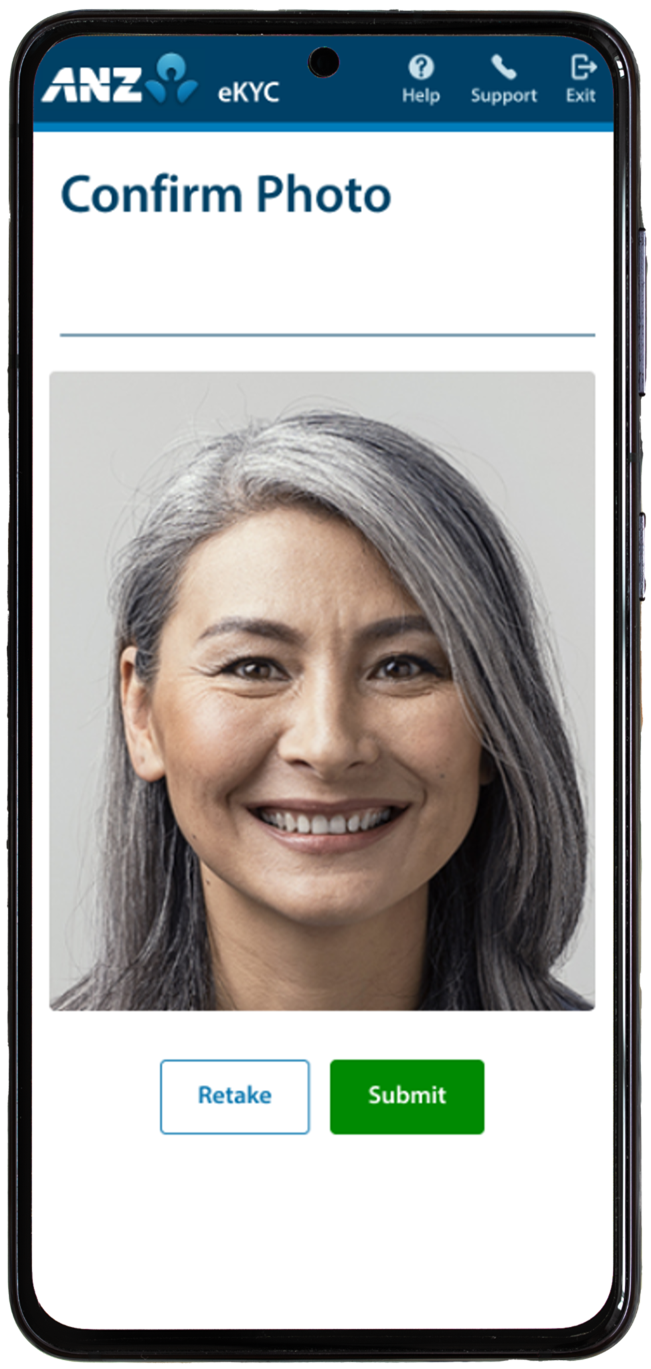
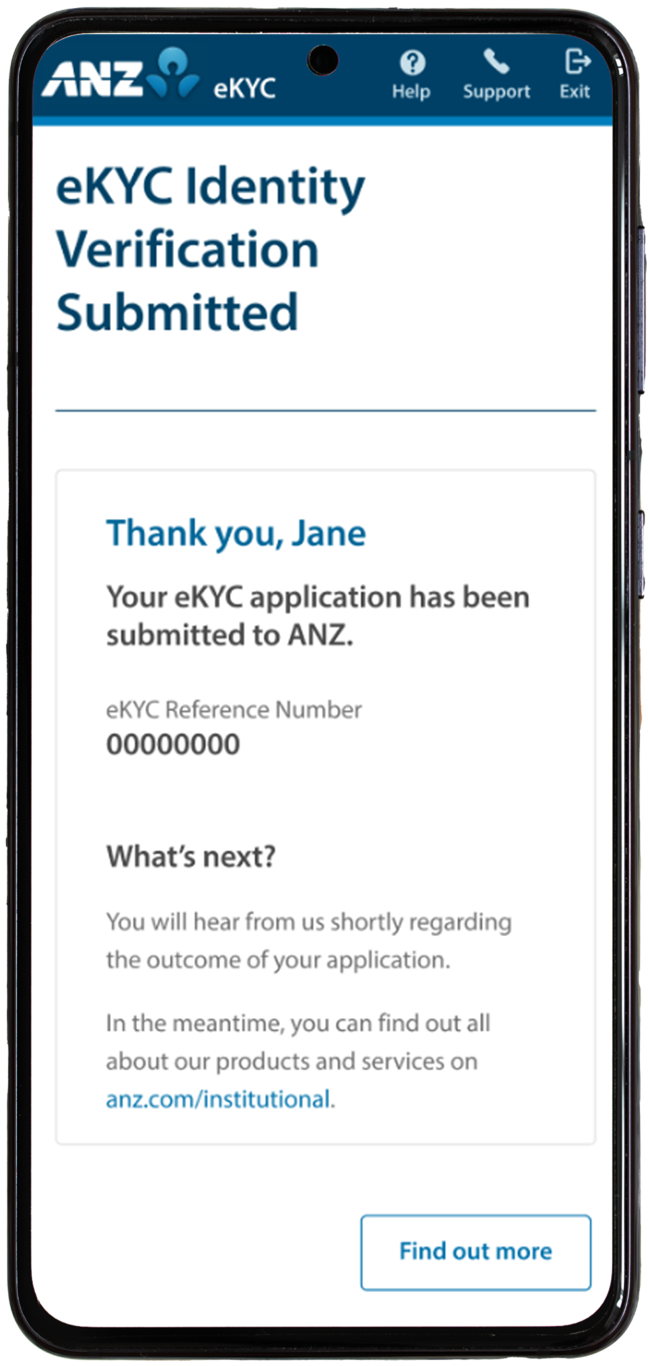
If you would like to retake the photo, tap Retake otherwise tap Submit.
RESULT:Your eKYC application has been submitted. ANZ will communicate further information regarding the outcome via email.
|
| STEP | ACTION |
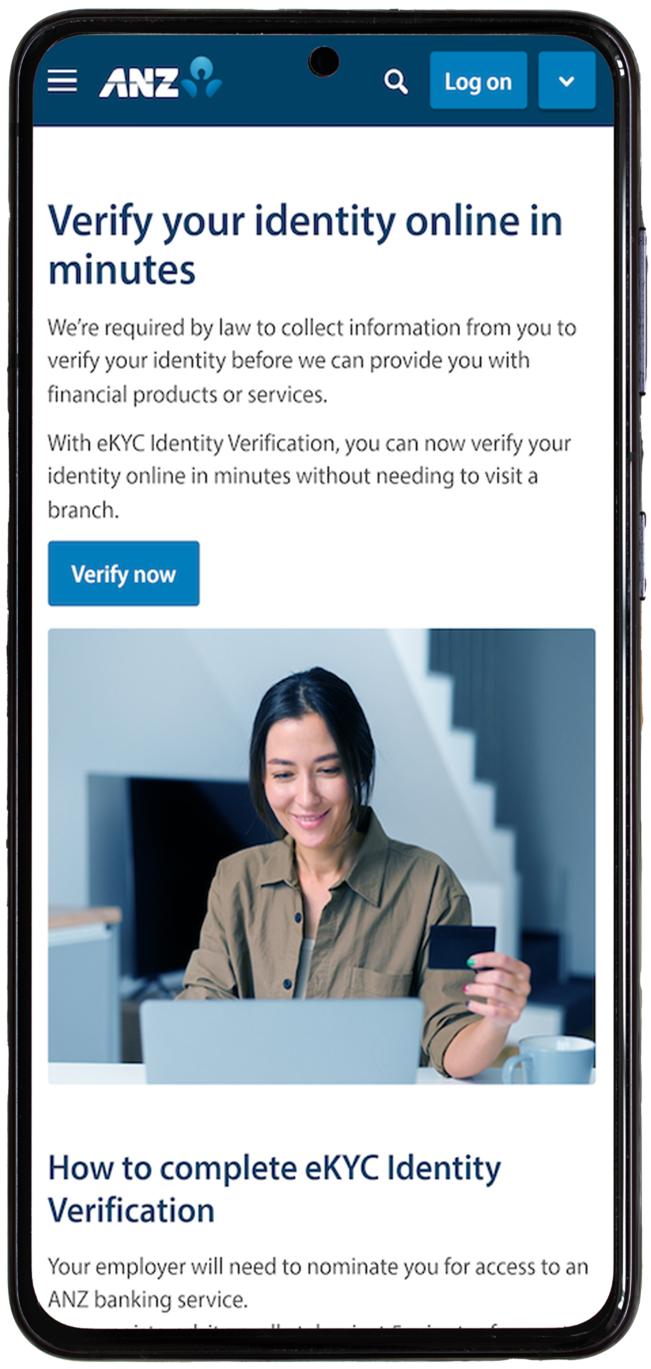
| 1 |
Go to the eKYC Identification Verification page and click Verify Now.
|
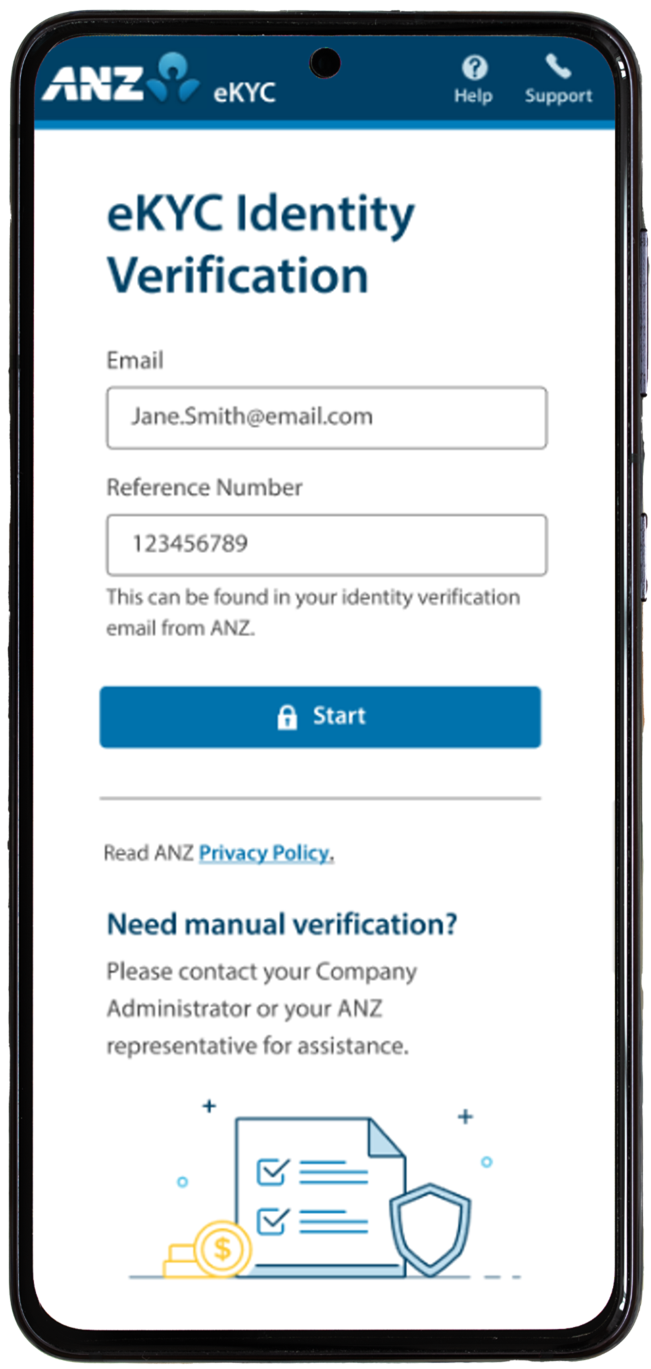
| 2 |
Enter your email address and unique Reference Number and tap Start. Your email address will be the same one you registered with ANZ, and the Reference Number will be in the Identity Verification email from ANZ.
|
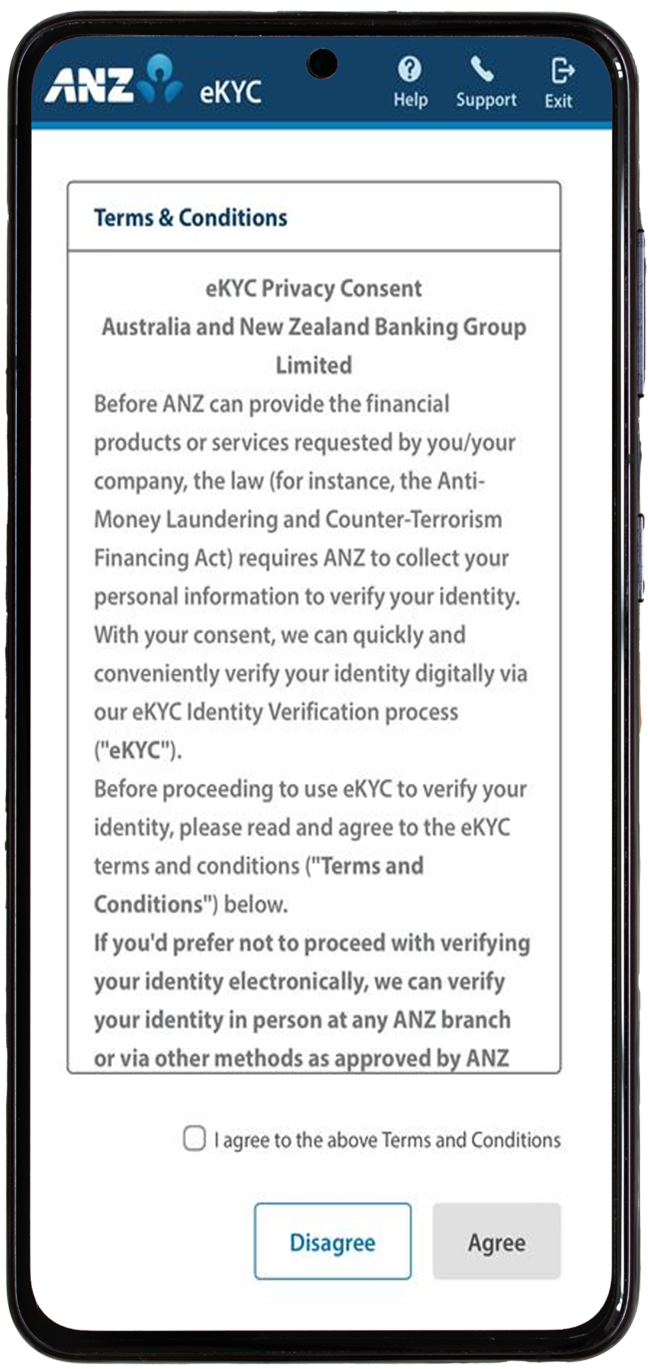
| 3 |
Review and accept ANZ’s Terms & Conditions and tap Agree.
If you tap Disagree, you will not be able to proceed with eKYC and the process will end. You will need to contact ANZ to progress with your identity verification. |
| 4 |
Tap Let’s get started.
|
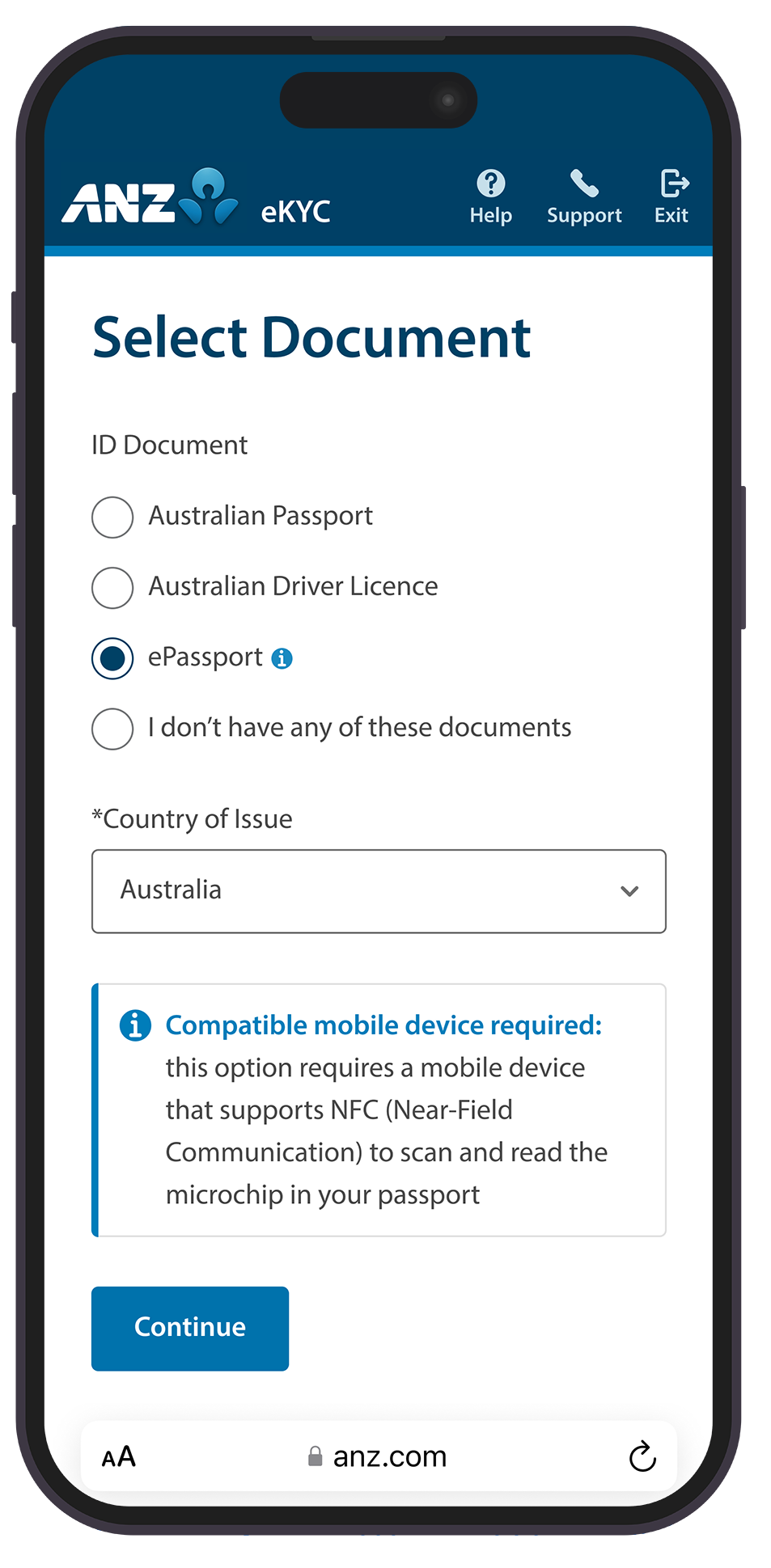
| 5 | Select ePassport and Country of Issue, then tap Continue.
|
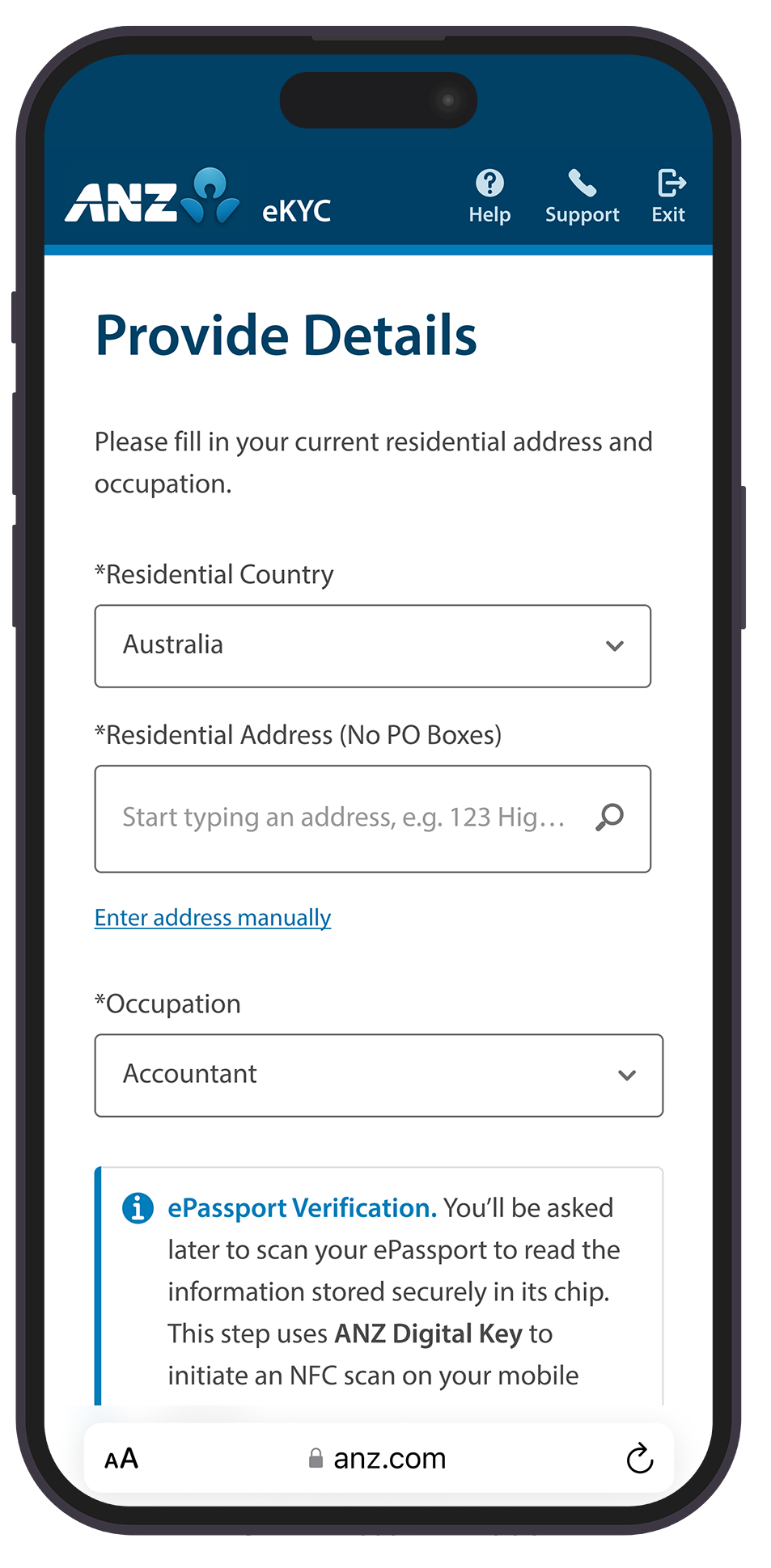
| 6 | Provide your residential and occupation details. Agree to the terms and conditions and tap Confirm.
|
| 7 |
Tap Ok to take a photo of yourself.
Tap the shutter button when ready.
|
| 8 | If you would like to retake the photo, tap Retake otherwise tap Submit.
|
9 |
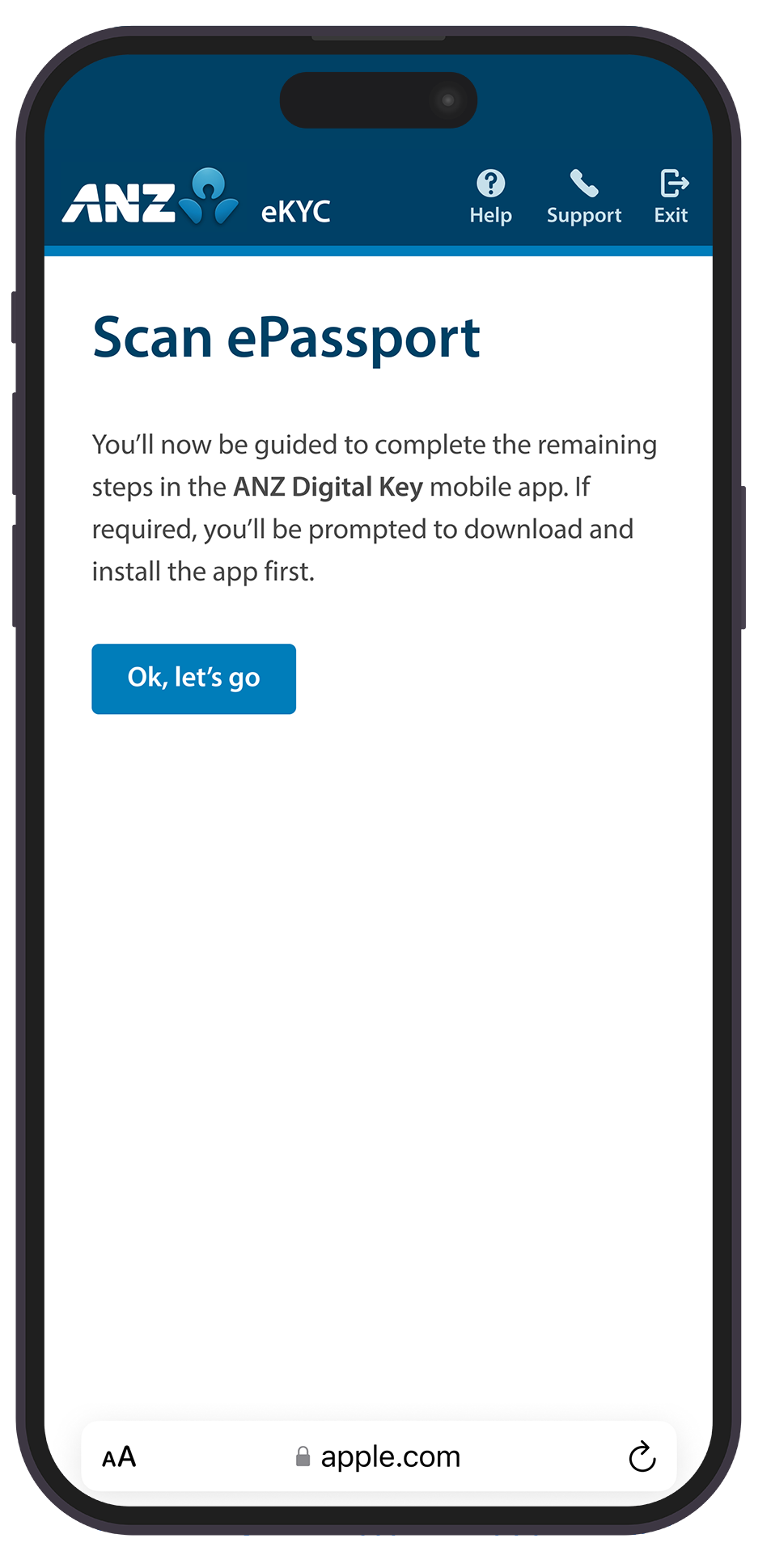
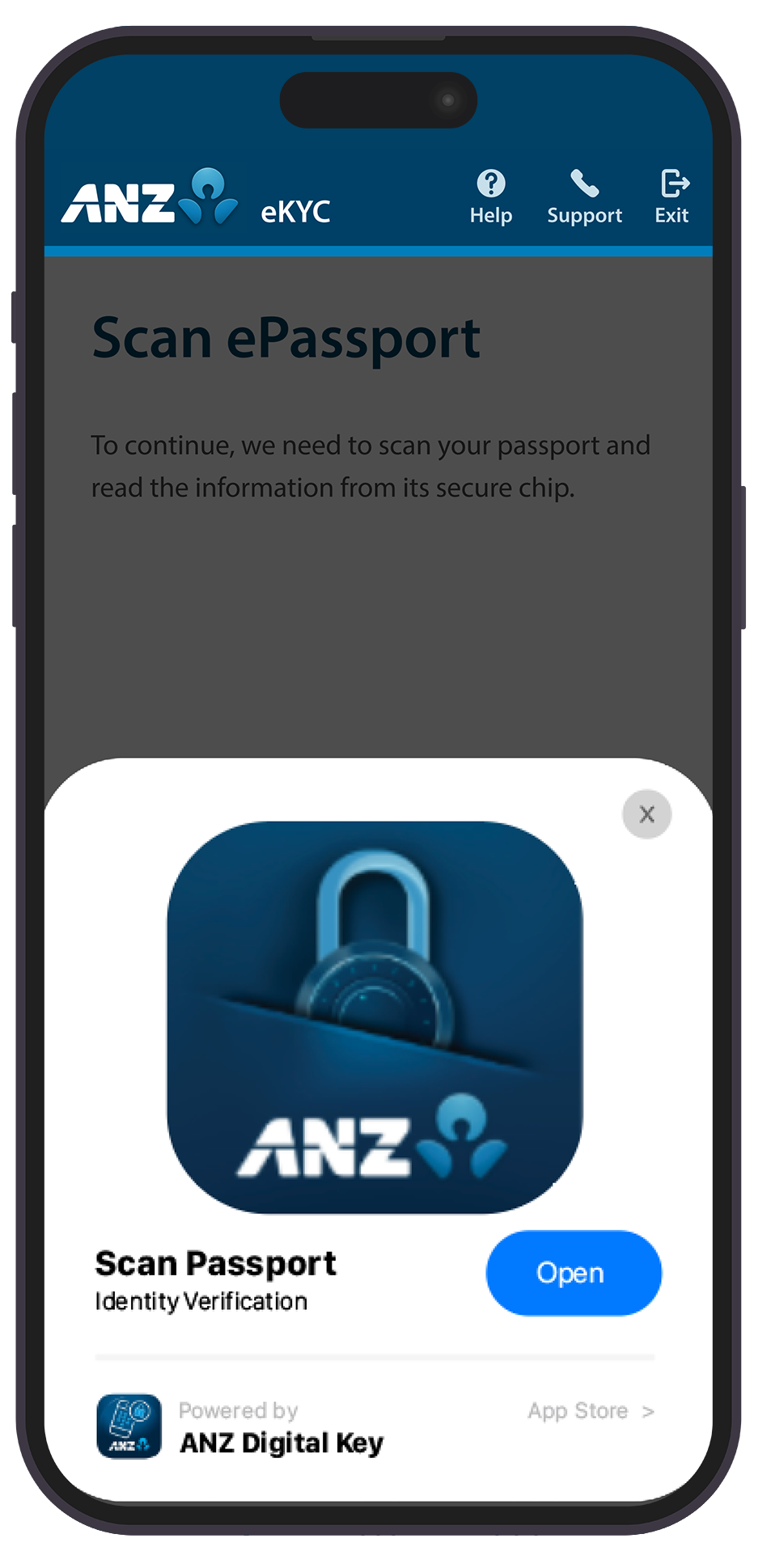
Tap Ok, let’s go and tap Open to launch the ANZ Digital Key app.
|
10 |
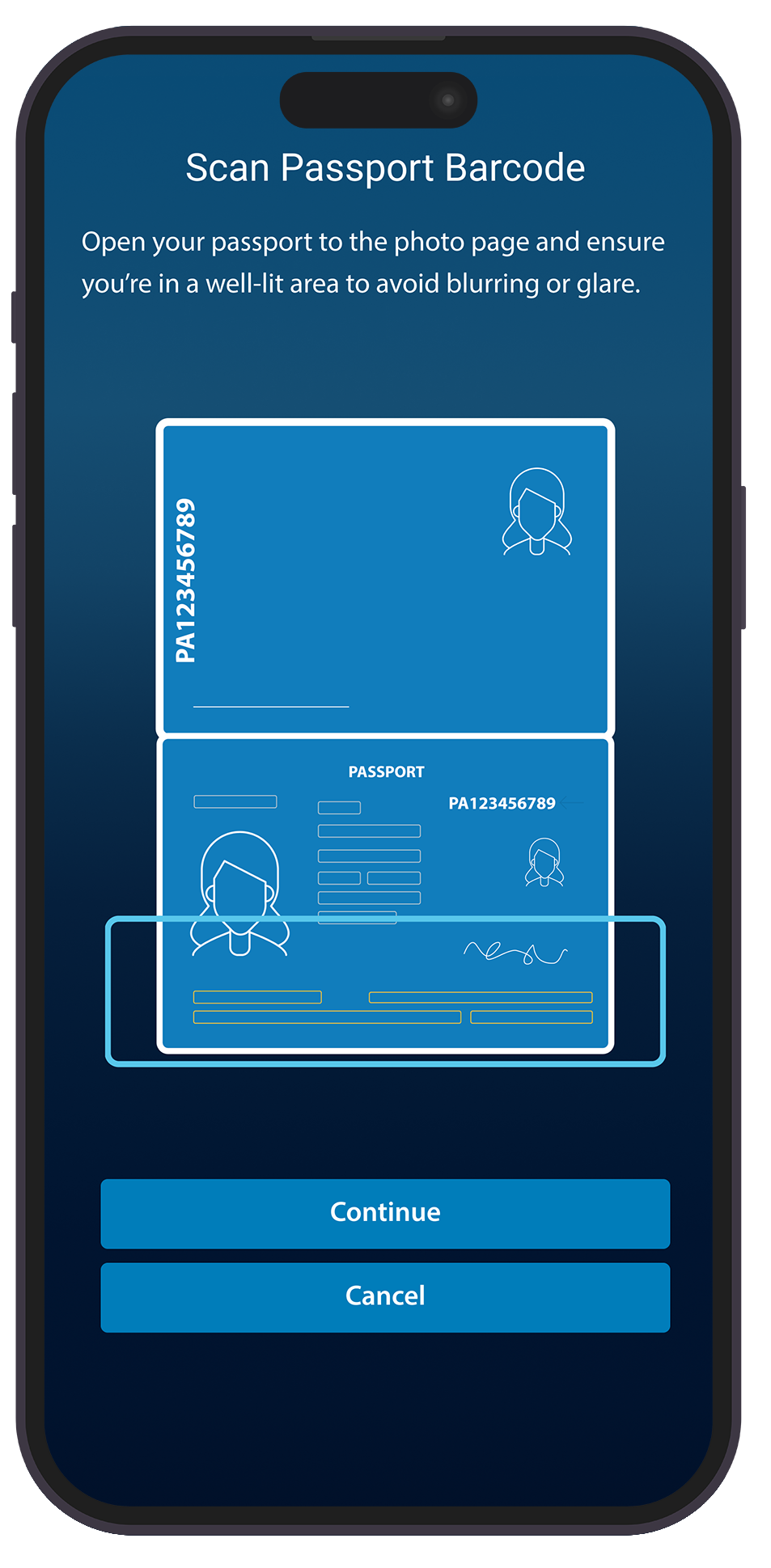
Tap Continue to proceed to scan your passport barcode.
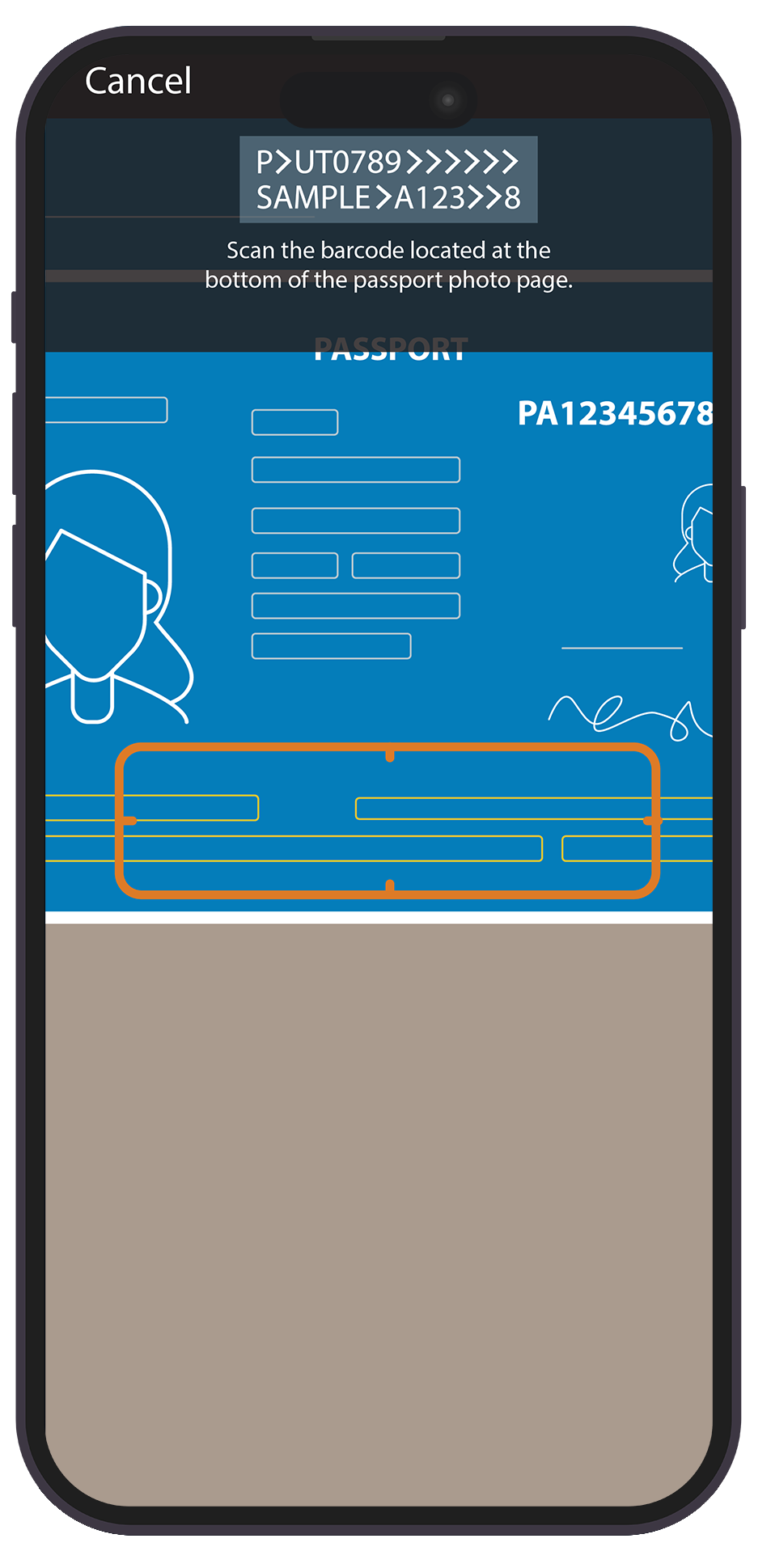
Scan the passport barcode located at the bottom of your passport photo page.
|
11 |
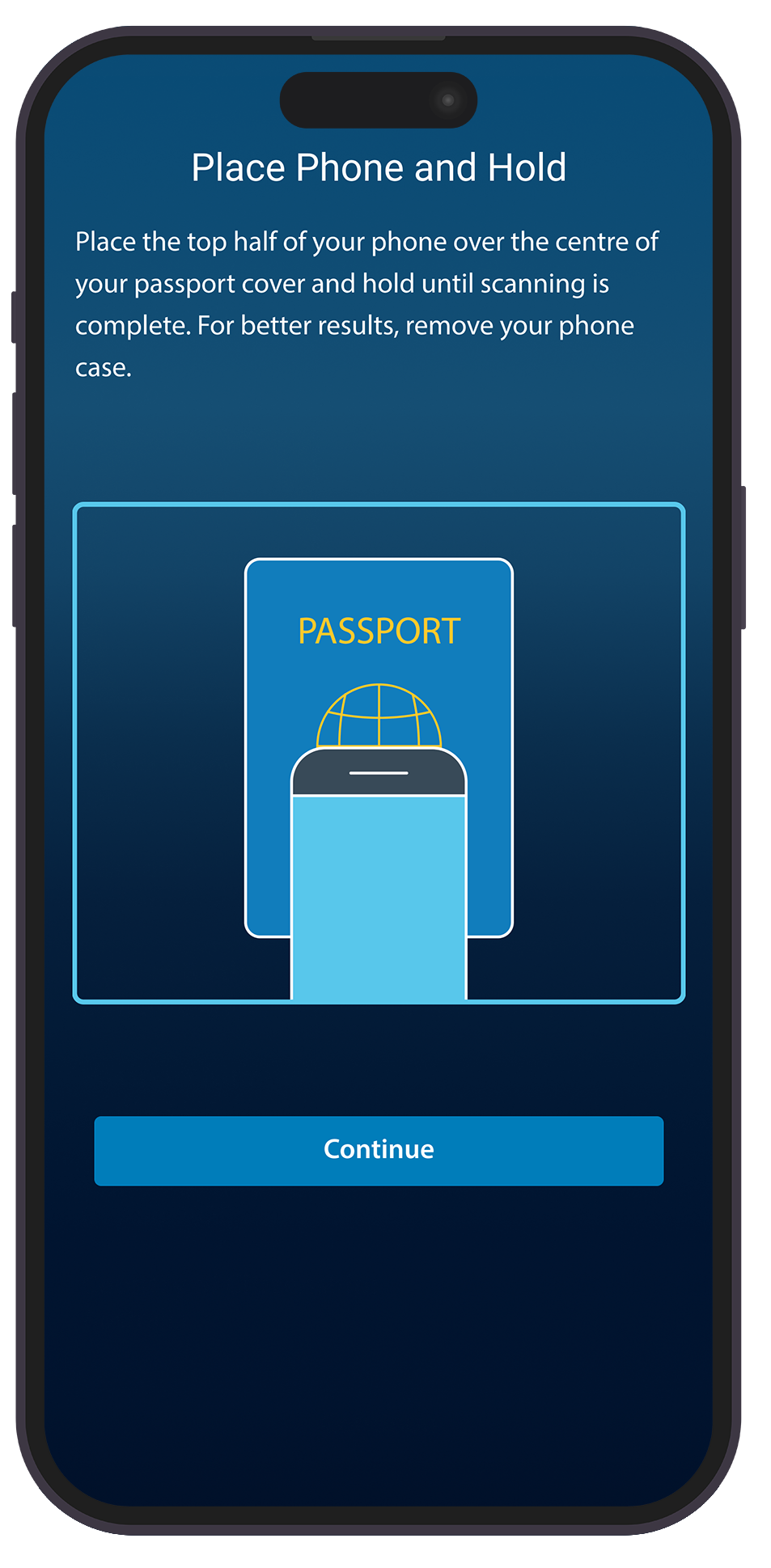
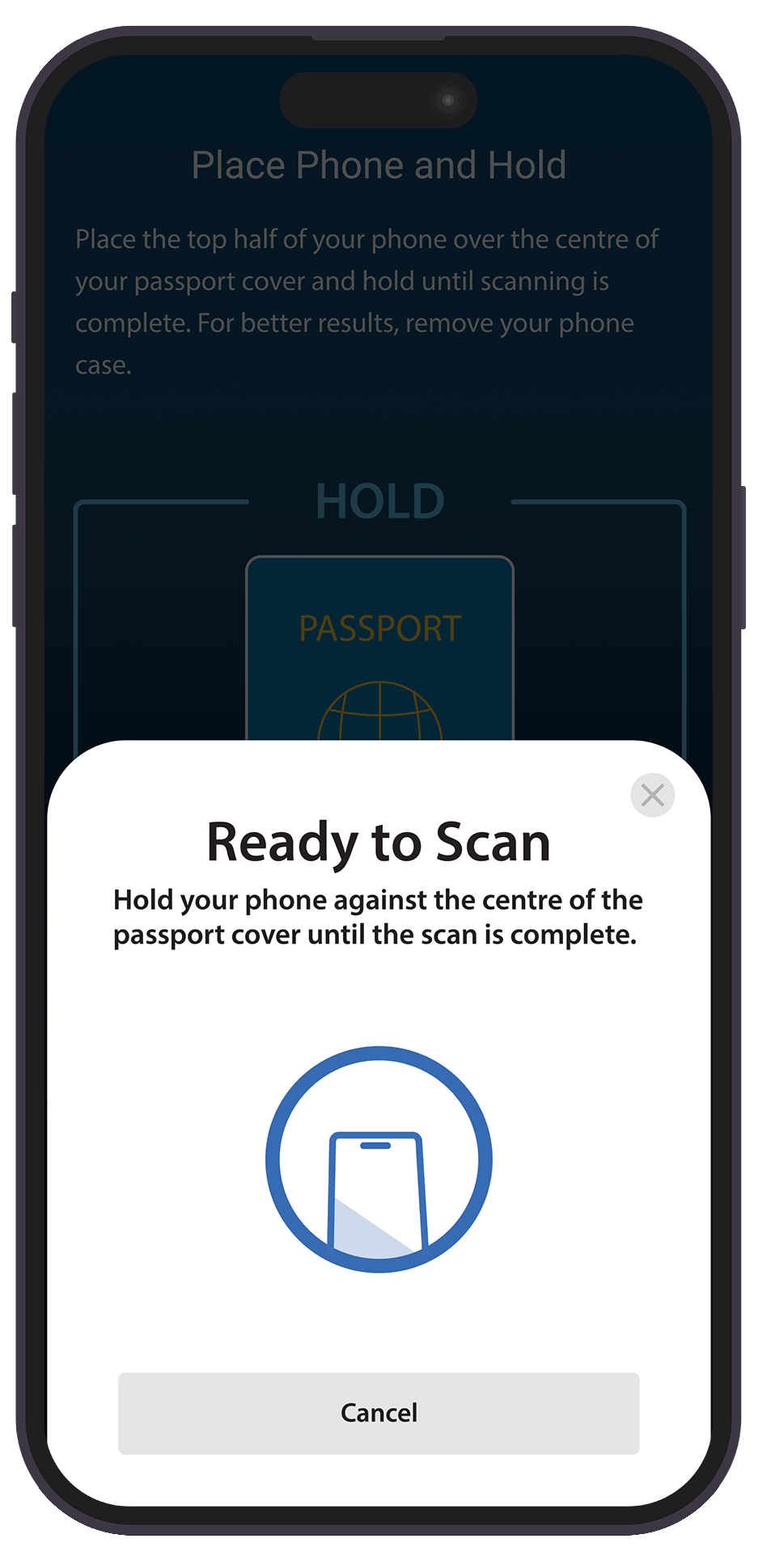
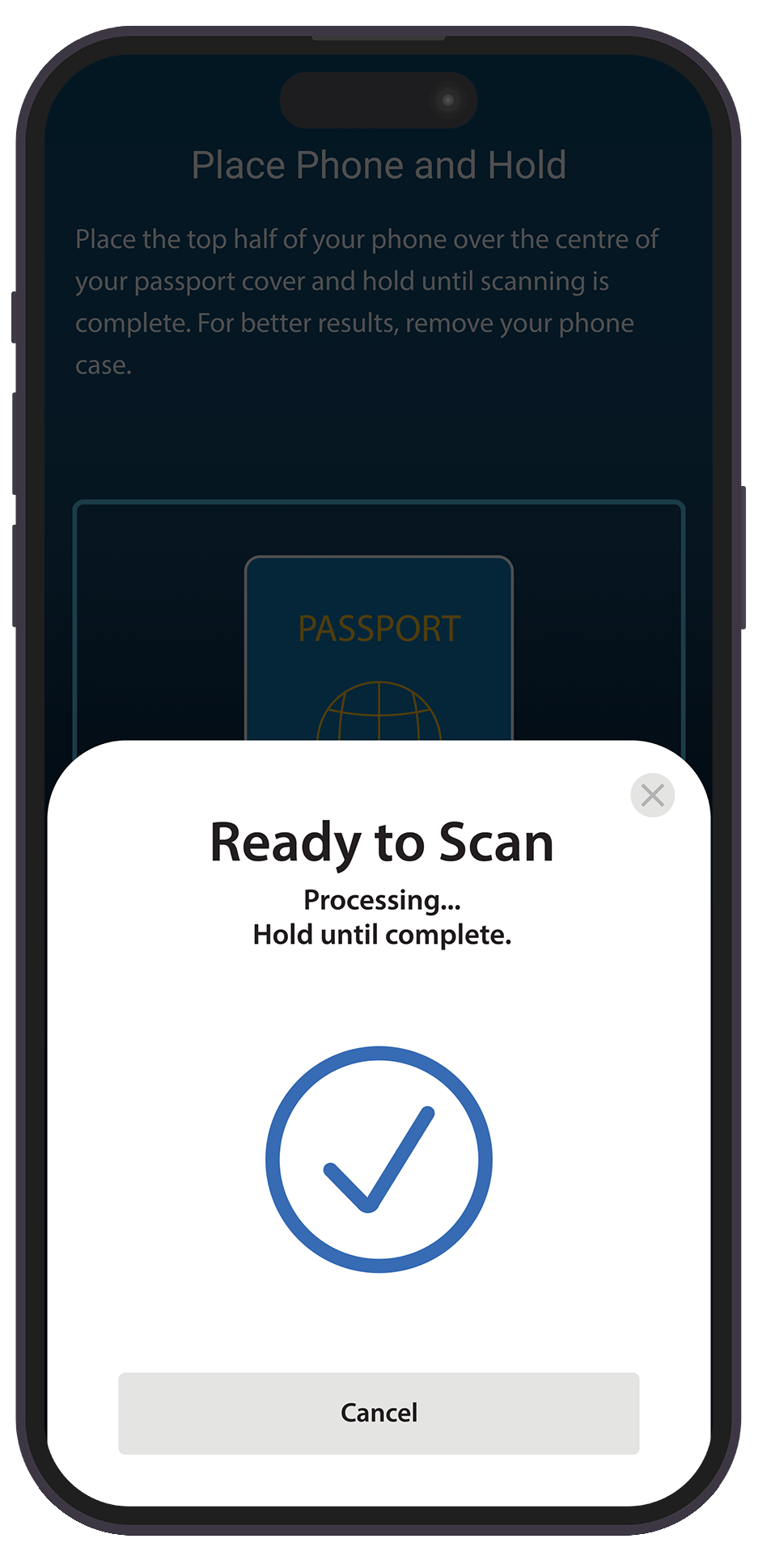
Place the top half of your phone over the centre of your passport and hold until the scan is complete.
For better results, remove your phone case or cover before scanning. |
12 |
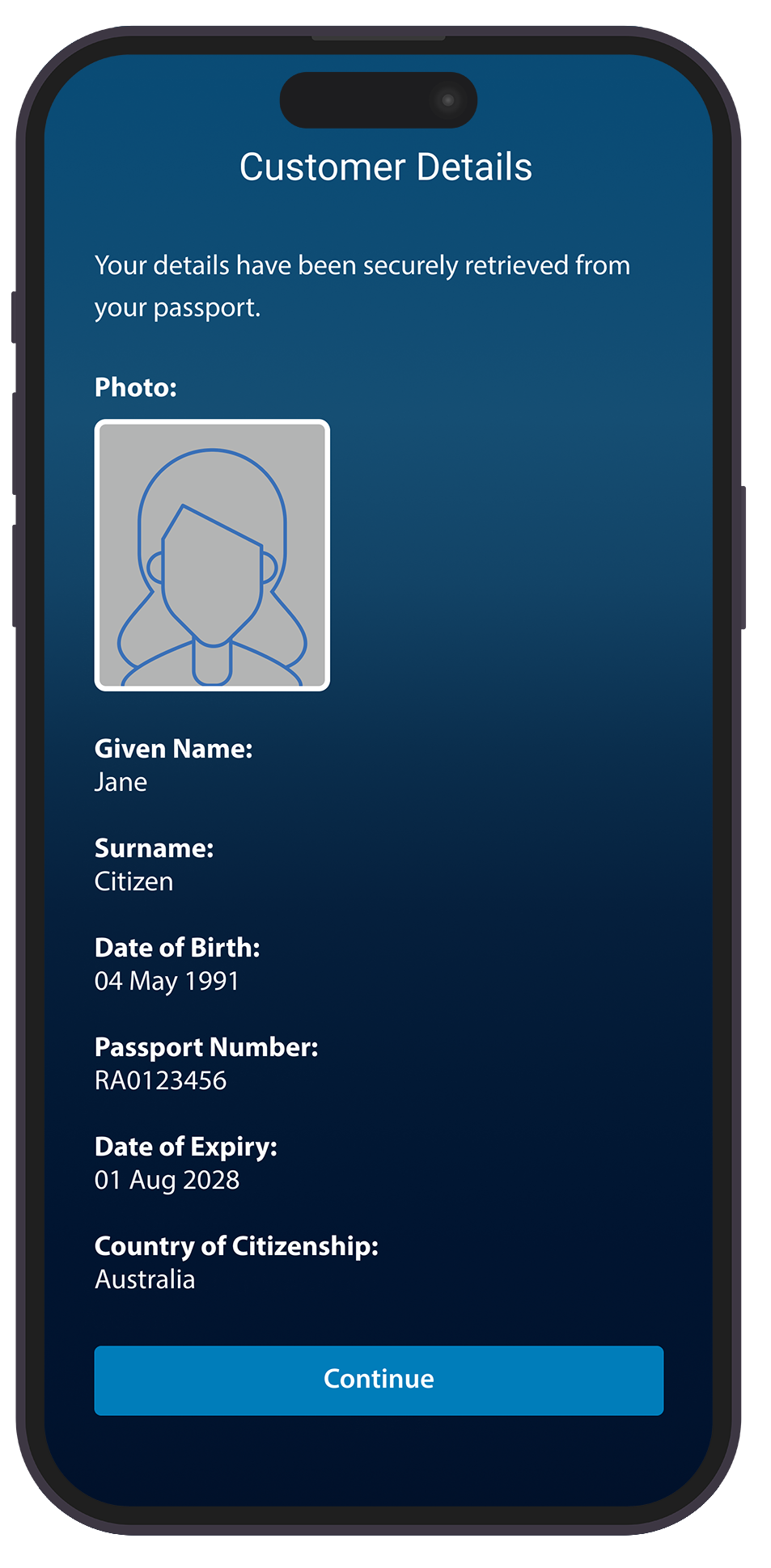
Verify your details and tap Continue to submit your application.
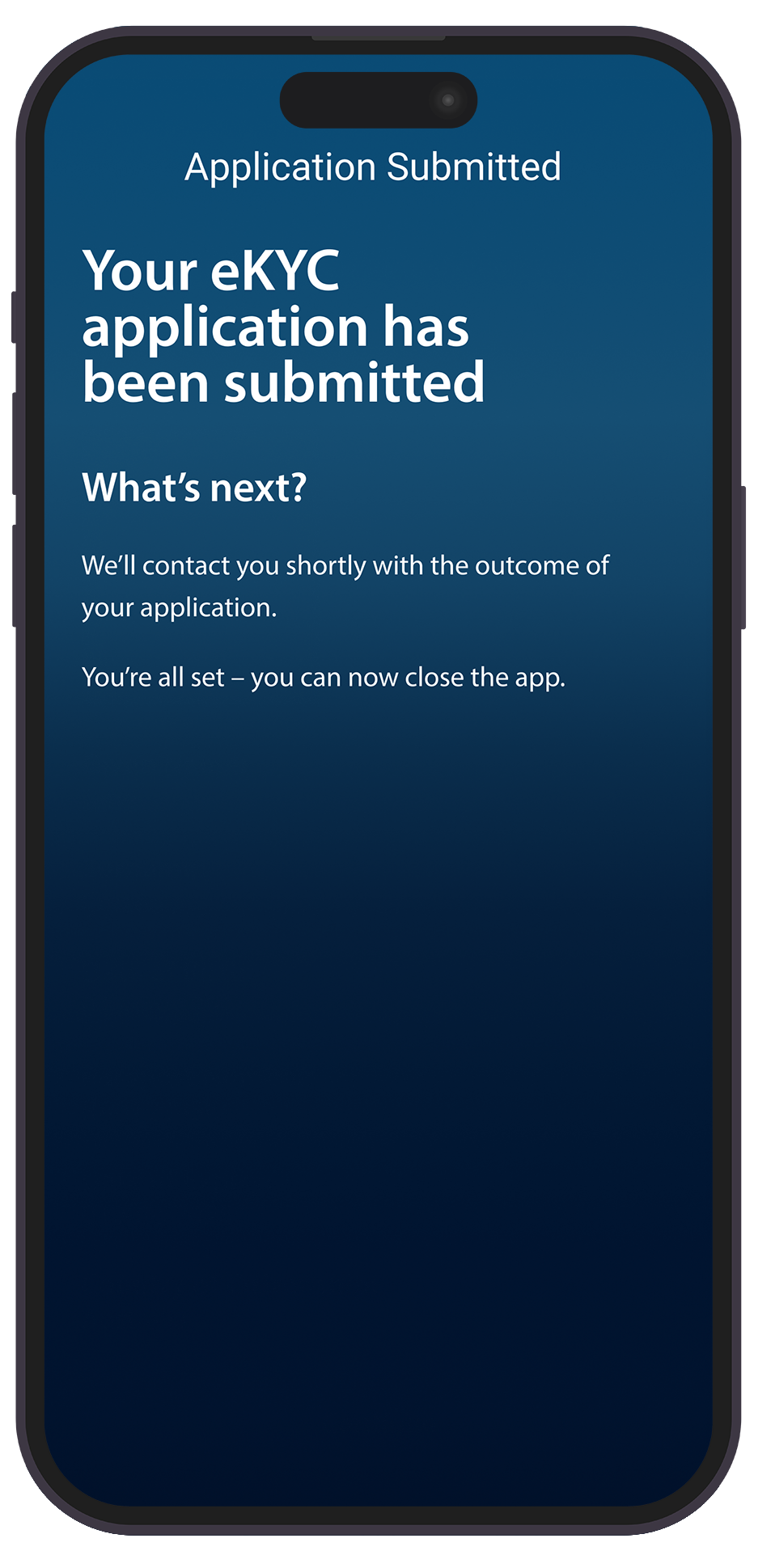
RESULT:Your eKYC application has been submitted. ANZ will communicate the outcome of your application via email.
|
Before ANZ can provide certain digital channel users with access to your company’s financial products or services, ANZ is required to collect information from you to verify your identity.
This process is called “Know Your Customer” or “KYC” and is an important part of the way we manage the risk of fraud and financial crime while also helping us comply with relevant anti-money laundering and counter-terrorism financing laws. To make this as simple as possible, we have introduced eKYC as a convenient, fast and secure way to verify your identity using your compatible mobile device.
To complete eKYC you need to:
- be 18 years of age or over
- hold one of the following Government-issued hard copy identification documents
- AU
- Australian Passport; or
- Australian ePassport
- Full Australian Driver's License - (Not currently accepted for NZ verification)
- NZ
- New Zealand Passport; or
- New Zealand ePassport; or
- New Zealand Driver's License; or
- Australian Passport
- AU
- have a compatible mobile device:
- For Apple users, eKYC is available on devices running iOS version 15.6.1 or above
- for Android users, eKYC is available on Android mobile devices running Android 12 or above
- Safari, Google Chrome or Microsoft Edge mobile browser (latest version recommended)
After you scan your ePassport, ANZ Digital Key should open automatically so you can continue your identity verification. If the app does not open, follow the troubleshooting steps below for your mobile device and browser.
Before troubleshooting, make sure:
- ANZ Digital Key is installed on your device
- You're using the same device that has ANZ Digital Key installed
- NFC is enabled
- You've closed and reopened both your browser and the ANZ Digital Key app
Redirected to the App Store or Google Play Store?
This usually means:
- ANZ Digital Key is not installed
- Your device settings are preventing the app from opening
To resolve this:
- Install or update the ANZ Digital Key app
- Return to your identity verification link and try again
- Follow the relevant Android or iPhone troubleshooting steps below if required
iPhone (iOS)
On iPhone, ANZ Digital Key should open automatically when you scan your ePassport. If ANZ Digital Key is installed, no additional browser or device settings are required.
Using Safari
- Scan your ePassport
- Tap Open when prompted
- Continue your identity verification in ANZ Digital Key
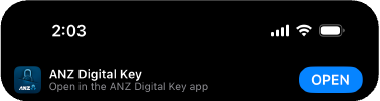
Using another browser?
If you're using Chrome, Firefox or another browser on iPhone, try opening the link in Safari.
Android Devices
Check ANZ Digital Key App Link Settings:
- Open Settings
- Select Apps or Applications
- Select ANZ Digital Key
- Tap Set as Default (may be labelled Open by default or Opening links)
- Make sure Open supported links is turned on.
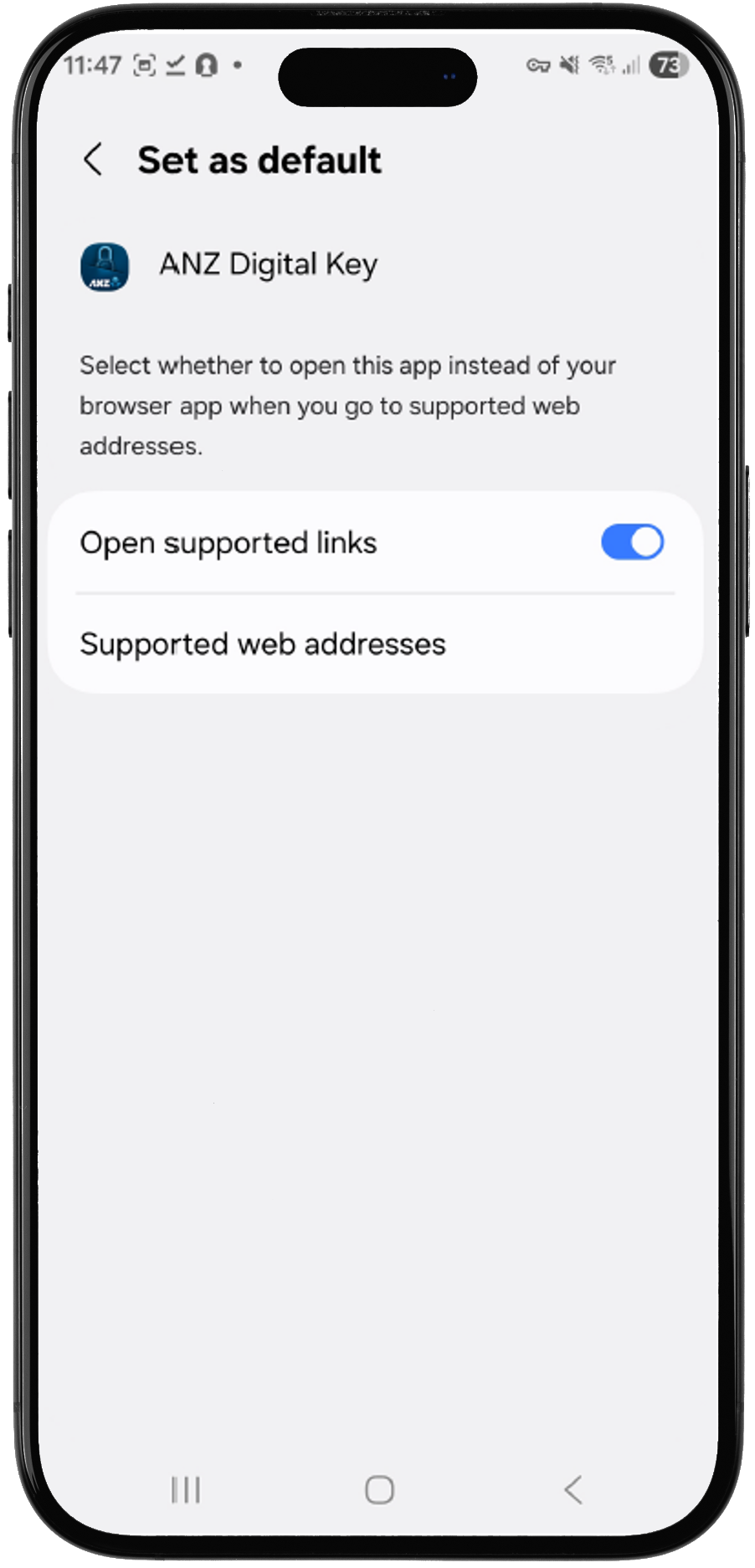
Check browser settings:
| Browser | What to do |
| Google Chrome | No additional settings required |
| Microsoft Edge | Select Open external app if prompted |
| Firefox | Select Open if prompted |
| Other browsers | Try Google Chrome, Microsoft Edge or Firefox |
Still need help?
Contact ANZ Support for assistance.
You can use ePassport verification if your ePassport was issued by one of the countries listed below.
| Australia | Hungary | Philippines |
| New Zealand | Iceland | Qatar |
| Argentina | India | Romania |
| Austria | Indonesia | Saudi Arabia |
| Belgium | Ireland | Singapore |
| Brazil | Italy | Slovak Republic |
| Bulgaria | Japan | South Korea |
| Canada | Kuwait | Spain |
| China | Latvia | Sweden |
| Croatia | Luxembourg | Switzerland |
| Czech Republic | Macao, China | Thailand |
| Finland | Malaysia | Türkiye |
| France | Netherlands | United Arab Emirates |
| Georgia | Norway | United Kingdom |
| Germany | Oman | United States of America |
| Hong Kong, China | Peru | Vietnam |
You can use ePassport verification if you live in one of the countries listed below and hold an ePassport issued by a supported country.
Your country of residence does not need to be the same as the country that issued your ePassport.
| Afghanistan | Germany | Pakistan |
| Aland Islands | Ghana | Panama |
| Albania | Greece | Papua New Guinea |
| Algeria | Guernsey | Peru |
| Andorra | Guyana | Philippines |
| Argentina | Hong Kong | Poland |
| Australia | Hungary | Portugal |
| Austria | Iceland | Qatar |
| Bahamas | India | Kazakhstan |
| Bahrain | Indonesia | Moldova (the Republic of) |
| Bangladesh | Ireland | Romania |
| Barbados | Isle of Man | Russian Federation |
| Belgium | Israel | Rwanda |
| Belize | Italy | Saint Kitts and Nevis |
| Benin | Jamaica | Samoa |
| Bermuda | Japan | Saudi Arabia |
| Botswana | Jersey | Serbia |
| Brazil | Jordan | Seychelles |
| Brunei Darussalam | Kenya | Sierra Leone |
| Bulgaria | Morocco | Singapore |
| Cambodia | Kiribati | Slovakia |
| Cameroon | South Korea (Republic of Korea) | Slovenia |
| Canada | Kuwait | Solomon Islands |
| Cayman Islands | Lao People's Democratic Republic | South Africa |
| Chad | Latvia | Spain |
| Chile | Liberia | Sri Lanka |
| China | Liechtenstein | Sweden |
| Colombia | Lithuania | Switzerland |
| Cook Islands | Luxembourg | Taiwan |
| Costa Rica | Macao | Thailand |
| Cote d'Ivoire | Malawi | Timor-Leste |
| Croatia | Malaysia | Togo |
| Cyprus | Mali | Tonga |
| Czech Republic | Malta | Turkiye |
| Denmark | Mauritius | Ukraine |
| Dominican Republic | Mexico | United Arab Emirates |
| Ecuador | Mongolia | United Kingdom |
| Egypt | Myanmar | Tanzania, United Republic of |
| El Salvador | Namibia | United States |
| Estonia | Nepal | Uruguay |
| Ethiopia | Netherlands (Kingdom of the) | Uzbekistan |
| Fiji | New Caledonia | Vanuatu |
| Finland | New Zealand | Viet Nam |
| France | Nigeria | Virgin Islands (British) |
| French Polynesia | Norway | Yemen |
| Georgia | Oman | Zambia |
For more information on when 2FA is required, visit our User Types, Roles & Identity Verification article.
To minimise the risk of fraud and identity theft, all Australian State and Territory governments have introduced a DLCN. This is a unique identifier found on your Driver Licence and it is updated every time your licence is re-issued, whether that be due to it being stolen, expired, or reported lost.
As part of the verification process, your DLCN is checked against Government and non-Government databases to confirm it’s the most recent version.
The DLCN field is mandatory, so it’s important you know where to find it on your Driver Licence.
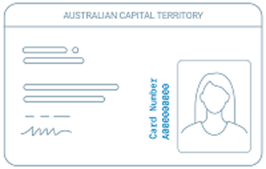 |
ACT The DLCN is found on the front of the licence and runs vertically alongside the photo. It is alphanumeric (both numbers and letters) and displays 10 characters. |
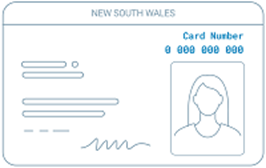 |
New South Wales The DLCN is found on the front of the licence, on the top-right corner above your photo. It is made up of 10 numbers. |
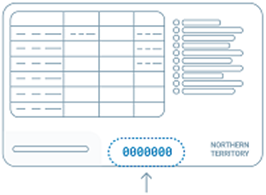 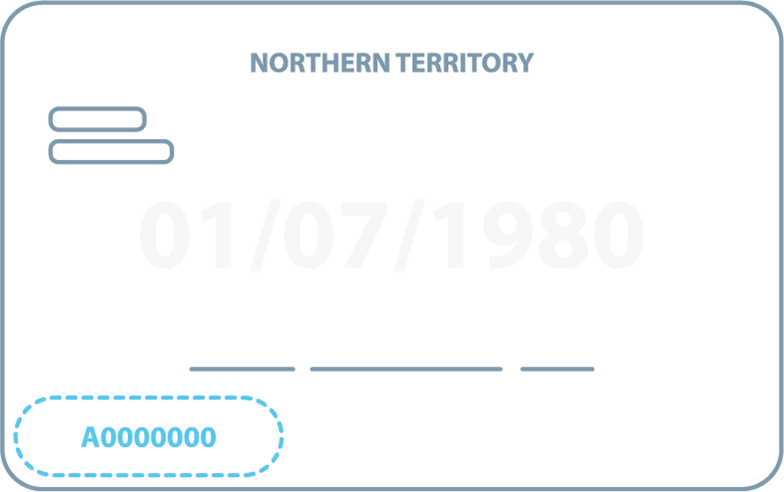 |
Northern Territory The DLCN is found on the back of the licence and in the middle of the bottom section, OR on the back, bottom left-hand corner of the licence. It is made up of 6 to 8 numbers. |
|
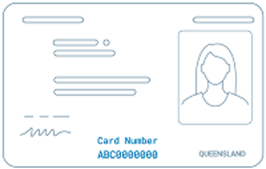
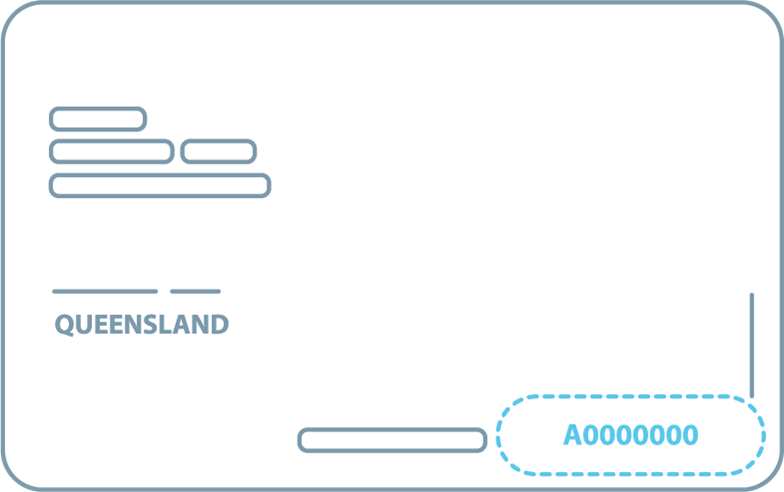
Queensland The DLCN is found either on the front of the licence and in the middle of the bottom section, OR on the back, bottom right of the licence. It is alphanumeric (both numbers and letters) and displays 10 characters. |
|
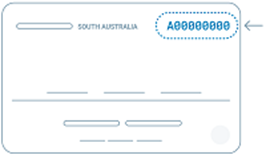 |
South Australia The DLCN is found on the back of the licence, on the top-right corner. It is alphanumeric (both numbers and letters) and displays 9 characters. |
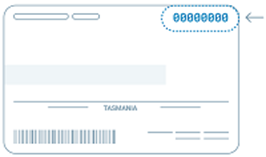 |
Tasmania The DLCN is found on the back of the licence, on the top-right corner. It is alphanumeric (both numbers and letters) and displays 9 characters.
|
|
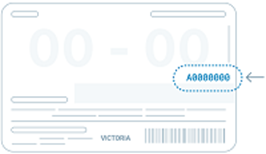 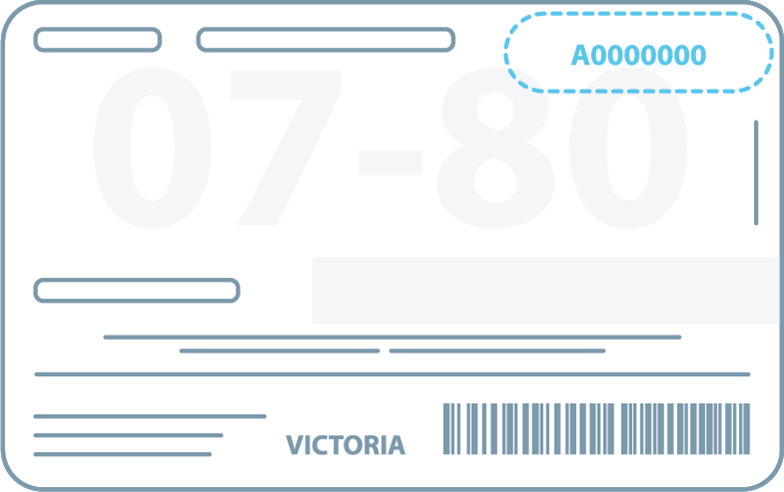 |
Victoria The DLCN is found on the back of the licence, on the far right-hand side, just under your birth date, OR on the back of the licence, on the top right-hand corner, on top of your birth date. It is alphanumeric (both numbers and letters) and displays 8 characters. |
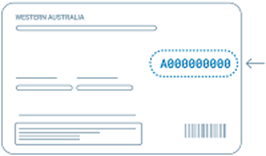 |
Western Australia The DLCN is found on the back of the licence, just above the middle of the card on the right-hand side. It is alphanumeric (both numbers and letters) and can display 8 to 10 characters. |
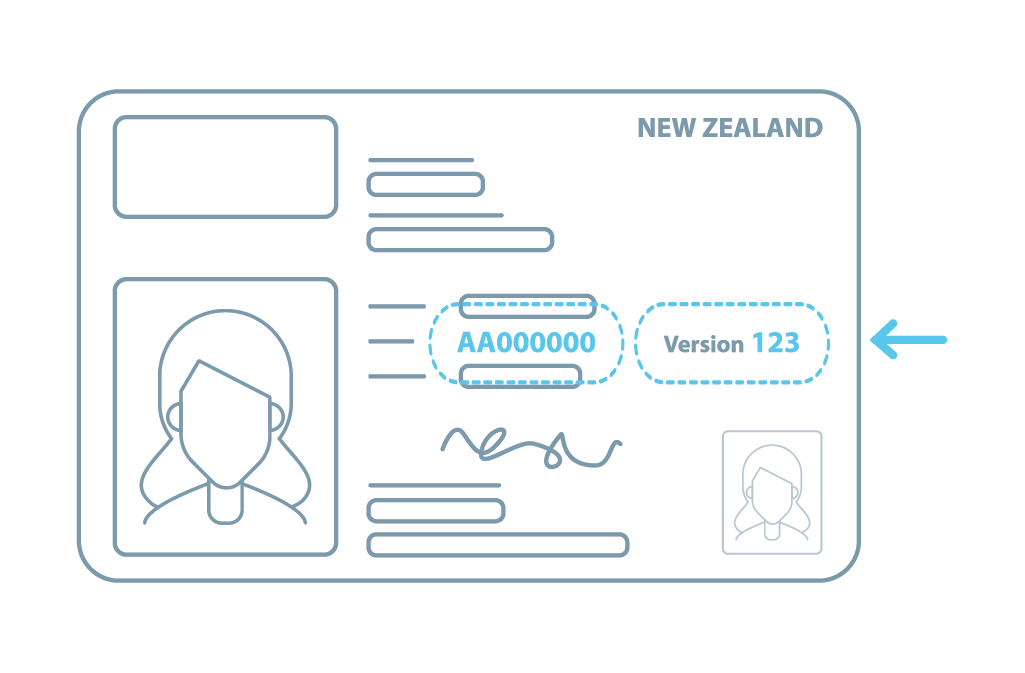
To minimise the risk of fraud and identity theft, New Zealand driver licenses include two key identifiers:
- Driver Licence Number – a unique number that stays the same each time a new licence card is issued.
- Version Number – this changes each time a new licence card is issued.
As part of the identity verification process, both numbers are checked against official databases to confirm the licence is current and valid.
These fields are mandatory, so it’s important to know where to find them:
- Driver Licence Number is located on the front of the card, in the centre. It’s an 8-character alphanumeric code.
- Version Number is also on the front, to the right of the Driver Licence Number. It’s a 3-digit number.